Configuration
Repository Variables Setup Guide
The Variables section is the core of the Git Deployment integration. As long as the data in this section is filled in correctly, the server will be able to pull code from your repository without any issues.
Before continuing, make sure you are already in the Git Deployment menu. Focus your attention on the five fields at the bottom of the page that determine the repository source and the destination location for the code on the server.
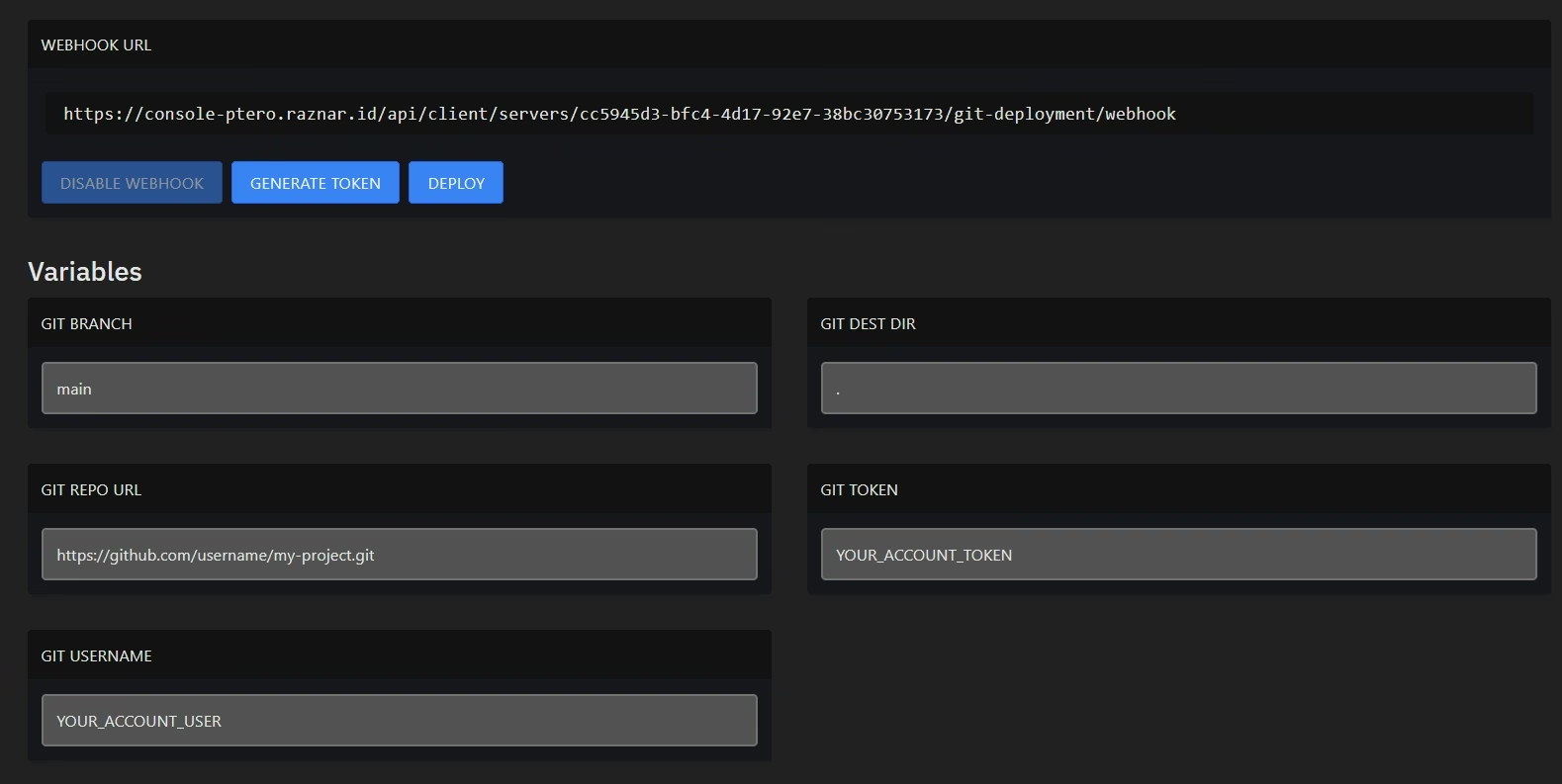
Explanation of Each Field
GIT REPO URL
Enter the full address of your Git repository. Make sure to use the HTTPS protocol, not SSH.
Example format:
https://github.com/username/nama-repo.githttps://gitlab.com/username/nama-repo.git
GIT BRANCH
Specify the name of the branch to be used as the deployment source.
- main / master: Generally used for the production environment
- development: Suitable for testing or staging
- Default: Use
mainif you don't have any special requirements
GIT USERNAME
Enter your GitHub or GitLab account username. This data is used for the authentication process when the server pulls code from the repository.
GIT TOKEN
The most crucial field in this configuration. Fill in the Personal Access Token (PAT) created from your GitHub or GitLab account.
Security Note: Raznar does not use your Git account password directly. The token is used as a safer alternative. Make sure the token has the minimum permissions:
- GitHub:
repo- GitLab:
read_repository
The full details are here:
GIT DEST DIR (Destination Directory)
Determines the storage location for the code inside the server. You can use any of the following path formats:
-
.or./Use this if you want the code to be placed directly in the server's main directory (root working directory). -
/Has the same effect as.— the code will be deployed to the container's main directory. -
/home/containerAbsolute path to the server's main working directory. Recommended if you want to be more explicit and avoid ambiguity. -
Folder name Enter a relative folder name (for example
public,app, orbackend) if you want to store the code in a specific subdirectory.
Note: All of the paths above will be processed relative to the server's working directory. Make sure the path you specify has write permission (write permission).
Verification Steps
Once all variables are filled in correctly:
- Click the Save button (if available) to save the configuration.
- Click the DEPLOY button to run the first code pull manually.
- If the configuration is valid, the process will succeed and your repository files will immediately appear in the File Manager.