How to Manually Back Up Your Server (Archive .tar.gz)
In the habit of diligently saving your server data to your own computer? Well, you can do a manual backup by compressing your entire server contents into a single .tar.gz file.
This method is highly recommended before you install a new plugin or do a world reset, so that if there's an error, you have a backup on hand!
Step 1: Open the Server File Manager
- Log in to your Game Panel as usual.
- Click on the server you want to back up.
- In the navigation menu on the left, click the Files menu to open the File Manager.
Step 2: Select All Files (Select All)
- Inside the File Manager, you'll see a list of all your server folders and files (like the
worldfolder,plugins, theserver.propertiesfile, etc.).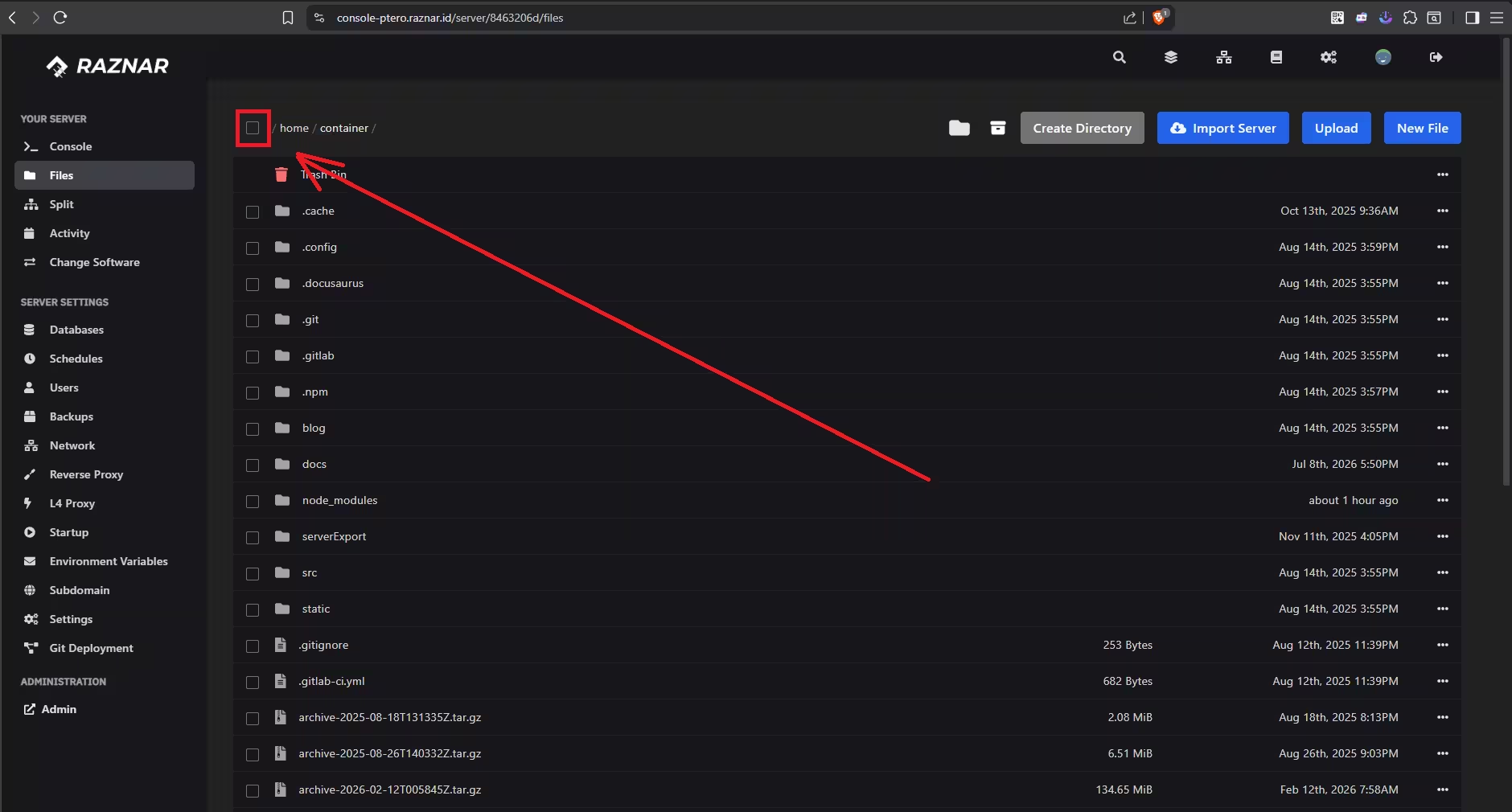
- To select everything, check the topmost empty box (usually located right next to the left of the File Name column).
- Make sure all files and folders are now checked and highlighted.
Step 3: Archive Process (Compression)
- Once all files are selected, find and click the Archive button.
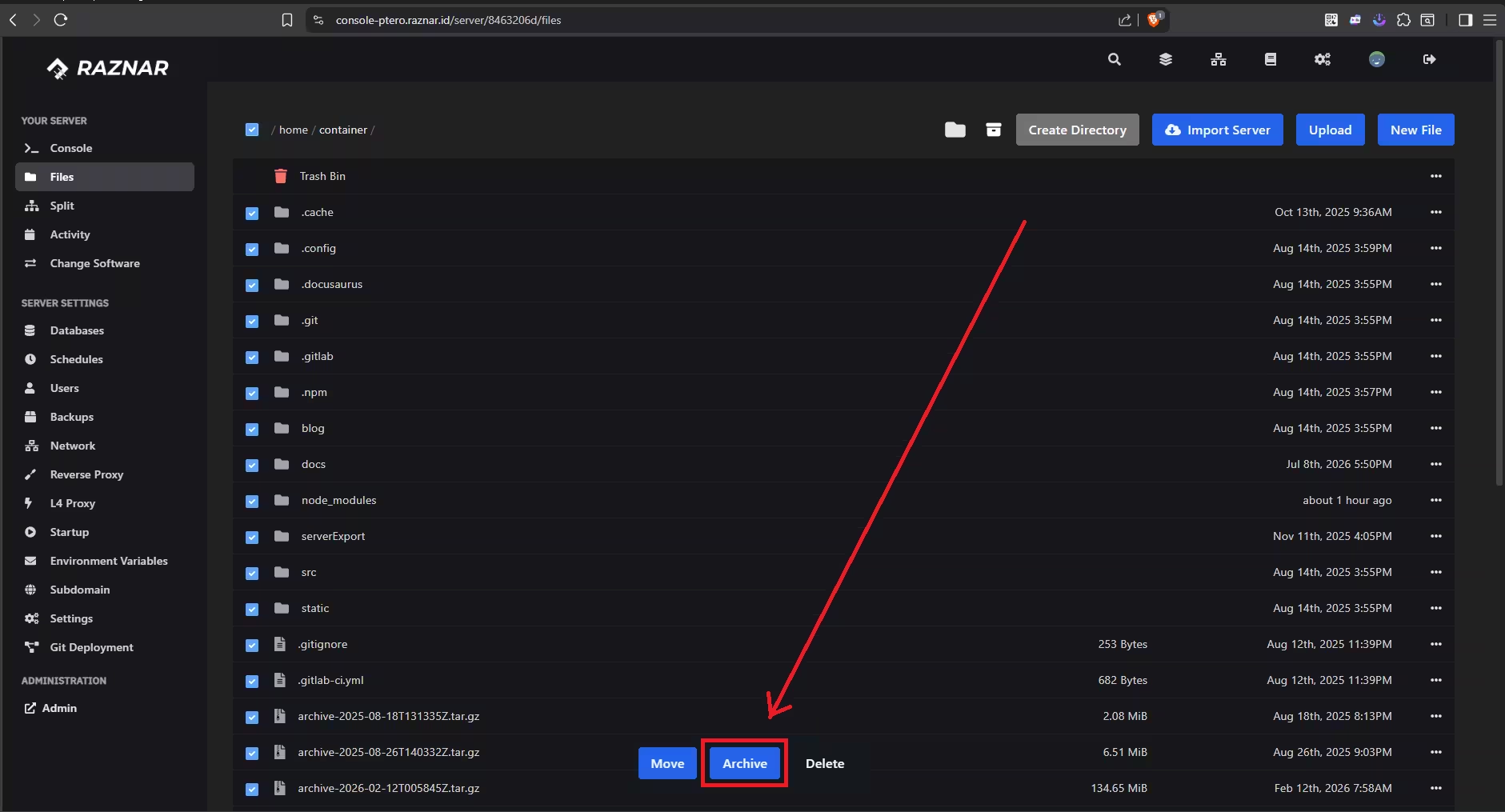
- The panel system will start combining and compressing all your data into a single file.
- If your server size is fairly large (contains lots of maps or plugins), this process will take a while.
Step 4: Save the Backup File
- If the compression process succeeds, a new file with the
.tar.gzformat will appear in your file list (for example, named:archive-16812345.tar.gz). This is your manual backup file. - (Optional) To avoid confusion, you can Rename it and change the name to something easy to remember.
- Finally, Download that backup file and store it safely on your computer or laptop.
IMPORTANT: DON'T FORGET TO DELETE IT!
After the .tar.gz backup file has finished being downloaded to your local device, you can delete that file from the panel. If you let them pile up, your server storage will quickly fill up and could cause the server to crash!