How to Reset Your Panel Password via Web Billing
Just bought a server at Raznar for the first time and confused about how to log in to the panel? Or getting a wrong password when logging in to SFTP?
Relax, this is the most common problem experienced by new users! You are required to perform a Reset Password first through the Web Billing in order to log in to the Game Panel. No need to bother waiting for a verification email or anything, just press the button.
Follow this easy method:
Step 1: Go to Web Billing
- Open your browser and log in to the Raznar Web Billing page at
clients.raznar.id. - Use the email and password you created when you first registered/bought the server.
Step 2: Open the Services Menu
- On the Dashboard page, look for the box labeled "Active Services" or "Layanan Aktif".
- Click on the server you just bought (for example, the
GNL-4Gpackage or your server's hostname).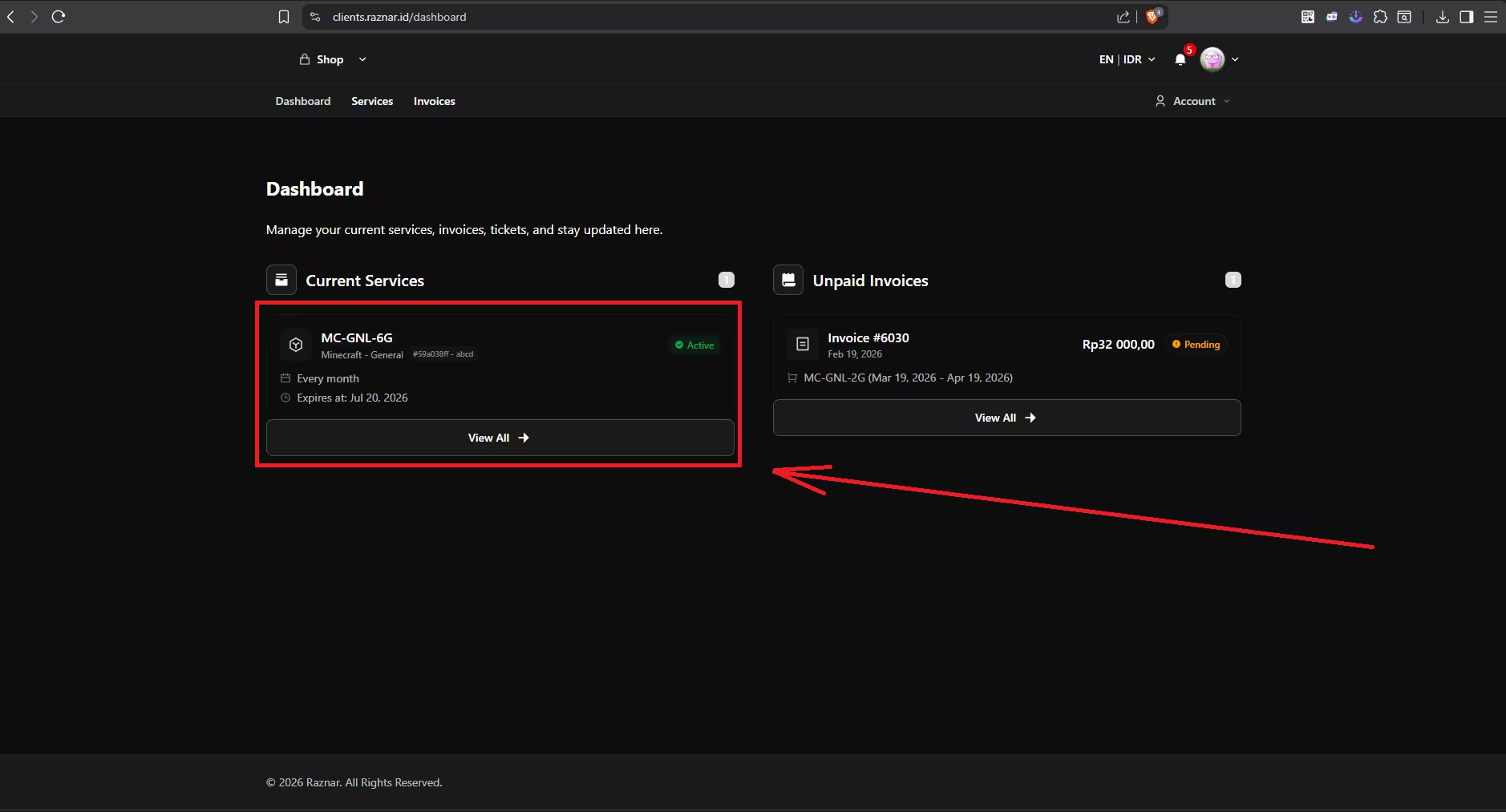
- You'll be taken to that server's information detail page.
Step 3: Use the Reset Password Button
- On that service detail page, look at the menu or buttons around it (usually in the Actions section or below the server details).
- Find and click the "Reset Password" button.
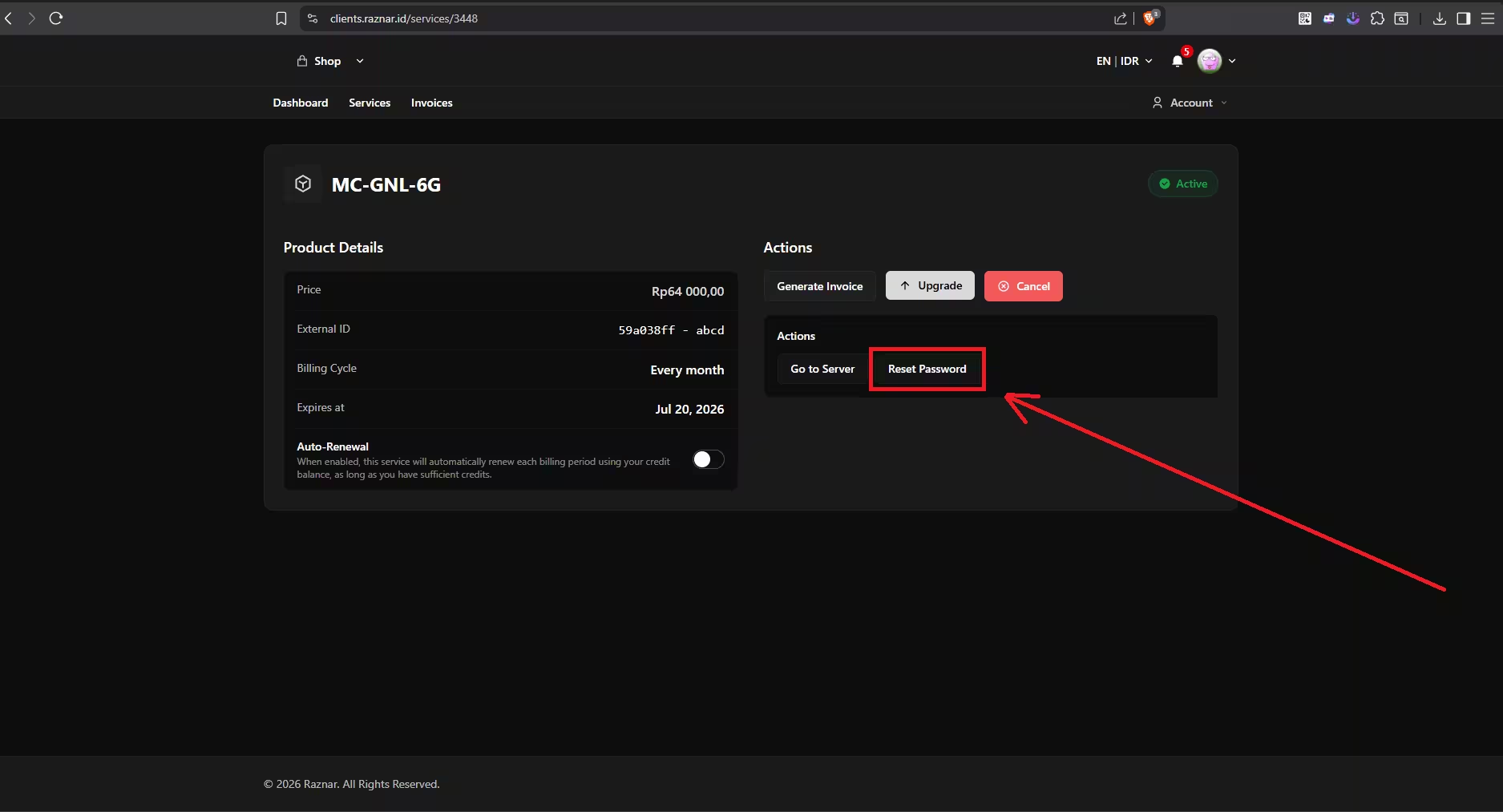
- The system will immediately reset your password with a new one.

- You can click the eye logo to view the password, then don't forget to copy it.
Step 4: Log In to the Game Panel
After successfully resetting:
- Open the Game Panel web.
- Enter your email (as the username) and the New Password you just set in step 3.
- Done! You can now log in to the panel and start managing your server.
IMPORTANT NOTE
It's very important that you do this step before trying to connect using an SFTP application (like Termius/FileZilla). Because SFTP requires this activated panel password.