How to Reset Your Game Panel Password
Forgot your password when trying to log in to the Game Panel console? Don't panic, you can easily create a new password through the Forgot Password feature.
Follow these simple steps:
Step 1: Go to the Login Page
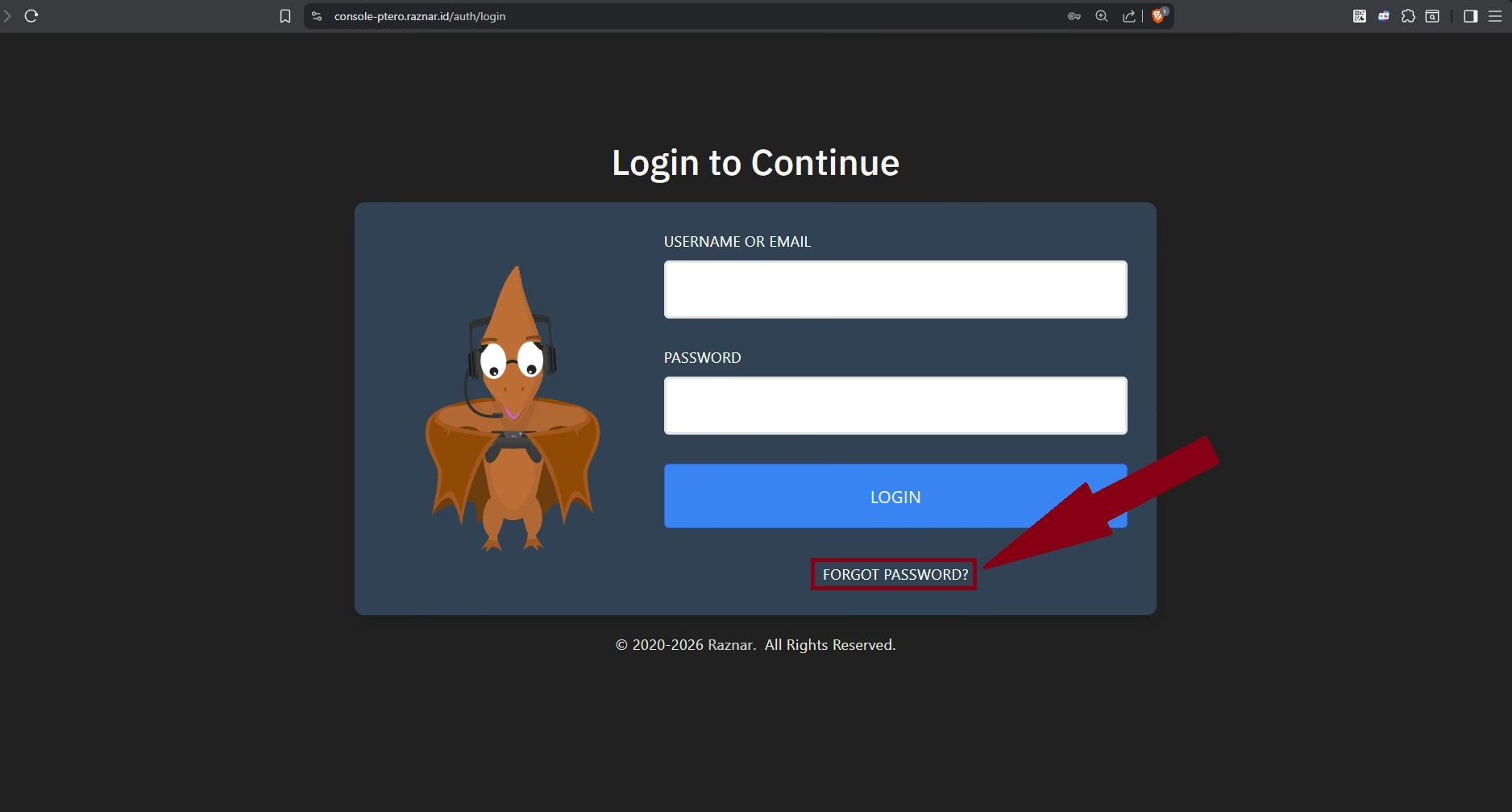
- Open the Raznar Game Panel login page in your browser (
console-ptero.raznar.id). - Right below the blue "LOGIN" button, find and click the text "FORGOT PASSWORD?".
Step 2: Request a Reset Link
- You'll be taken to the Request Password Reset page.
- In the EMAIL field, type the email address registered to your account (example:
[email protected]).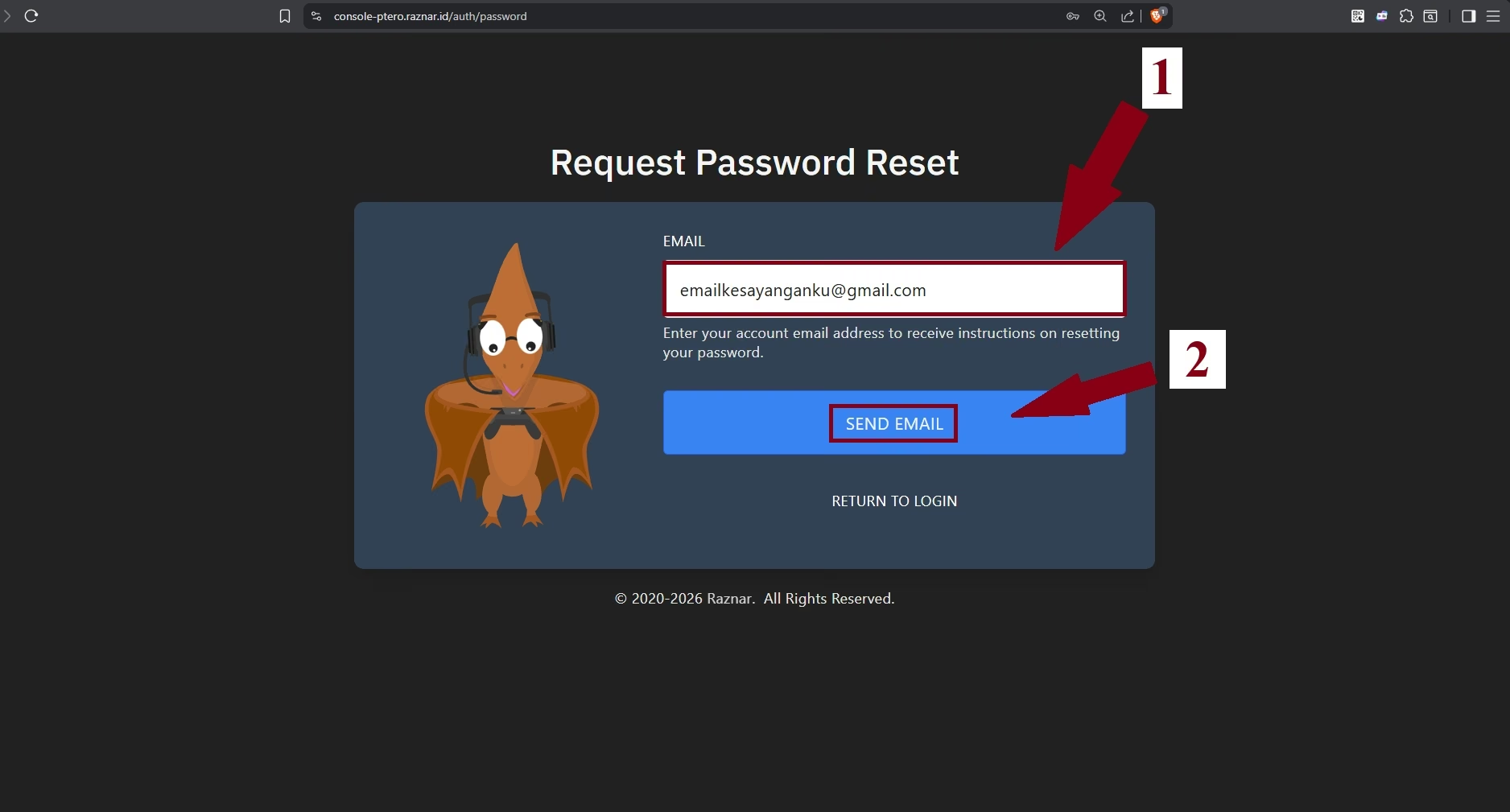
- Once the email is filled in, click the blue button labeled "SEND EMAIL".
Step 3: Check Your Inbox
- Open your email inbox (for example, open Gmail) and look for the latest email from Raznar. (Note: Also check the Spam/Junk folder if the email doesn't show up in your main inbox).
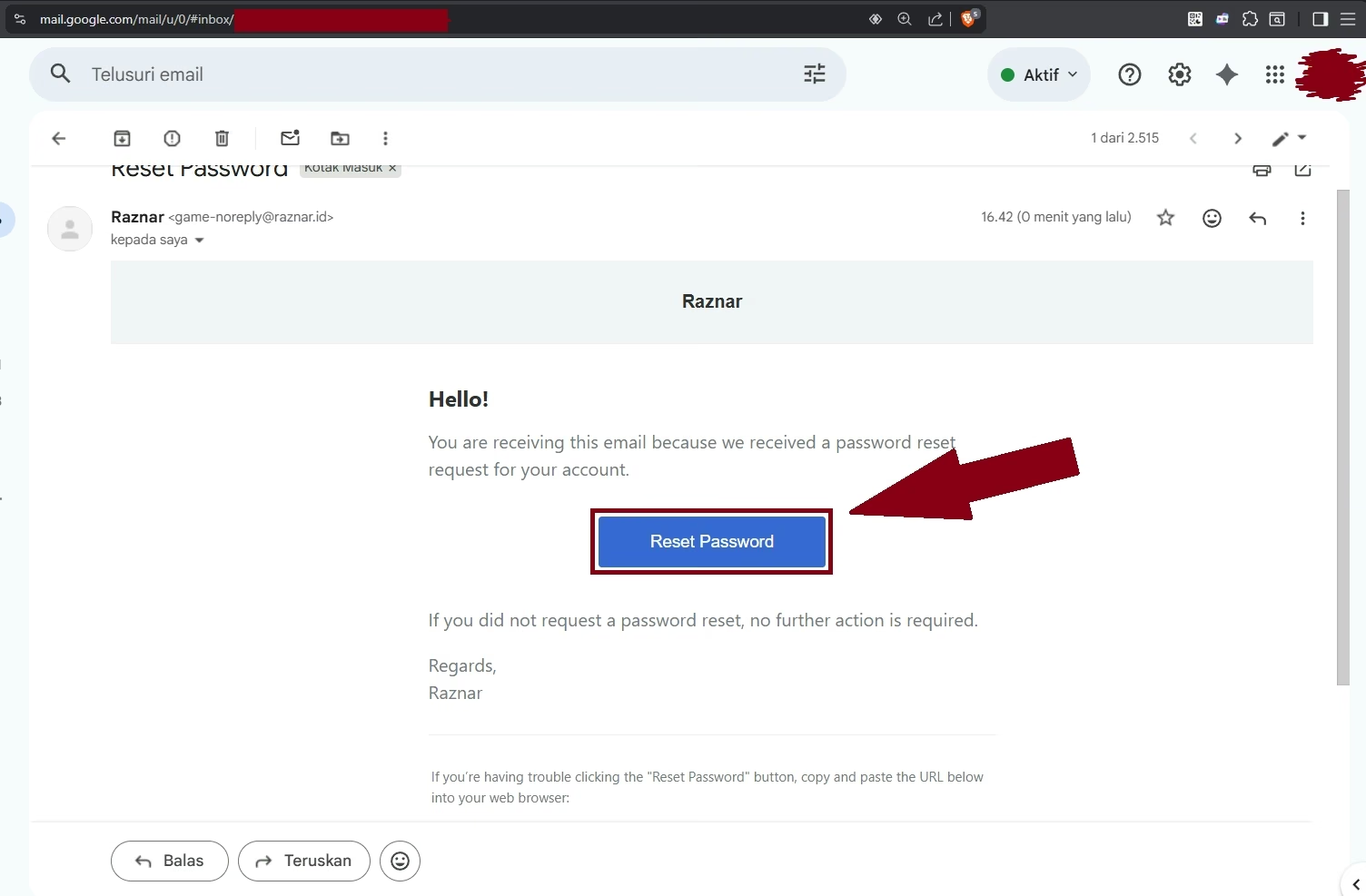
- Inside that email, click the big blue button labeled "Reset Password".
Step 4: Create a New Password
- The link from the email will direct you back to the Game Panel page to create a new password.
- Type your new password in the NEW PASSWORD field.
- Retype the exact same password in the CONFIRM NEW PASSWORD field to avoid any typos.
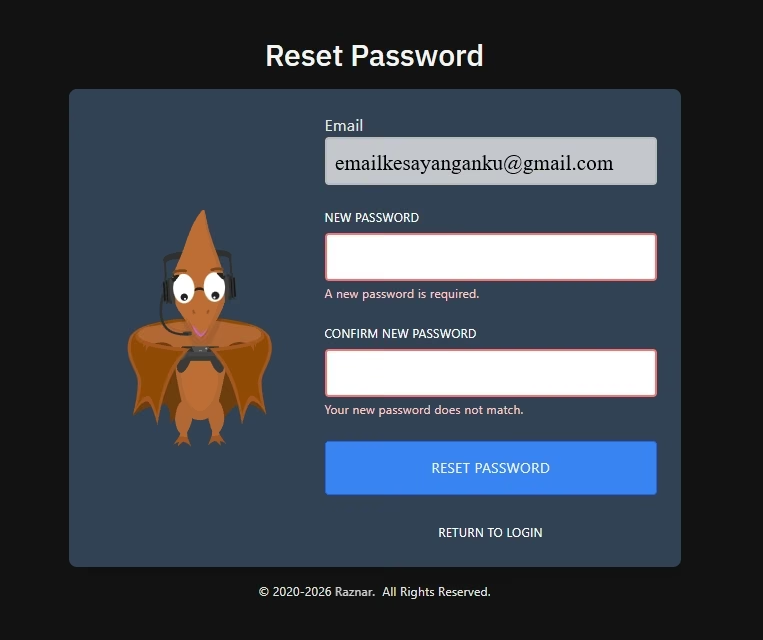
- Finally, click the blue "RESET PASSWORD" button at the bottom.
Done! You'll now be redirected back to the home page and can log in right away using your new password.