How to Access Server Files via Android (Termius)
Out and about but want to edit configs or upload plugins to your server? Relax, you can use your Android phone to access server files via SFTP.
In this tutorial we'll use the Termius app, because besides looking cool, the app is also super easy to use.
IMPORTANT FOR NEW USERS!
For those of you buying a server for the first time, make sure you've already set or reset your panel password first. If you haven't, you won't be able to log in to this SFTP.
👉 Check how here: How to Reset Panel Password via Billing
Step 1: App Preparation
- Open the Google Play Store on your phone.
- Search for and install the app called Termius - Modern SSH Client.

- If it's your first time opening it, you can Skip the account registration part, or just create the free account first, that's fine.
Step 2: Get the SFTP Login Details from the Panel
Before going into Termius, we need your server's "address".
- Log in to the Raznar Game Panel web.
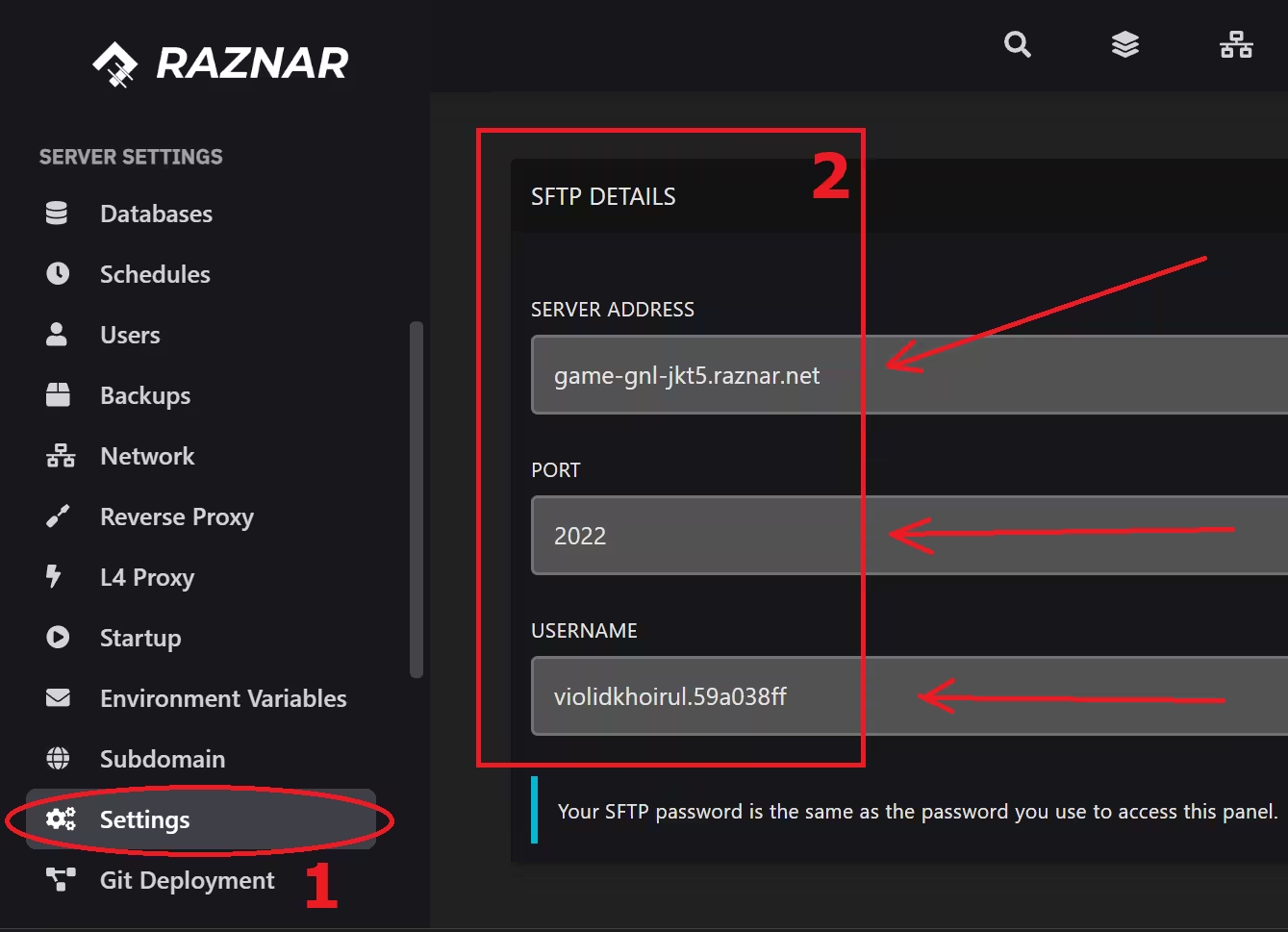
- Select your server, then go to the Settings menu.
- Find the SFTP Details box. Note down this data:
- Server Address: (Example:
game-gnl-jkt5.raznar.net) - Port: (Example:
2022) - Username: (Example:
raznar.1234abcd)
- Server Address: (Example:
Step 3: Create a New Connection in Termius
- Open the Termius app.
- Tap the Hosts menu (server icon).
- Tap the (+) button in the bottom right corner, then continue by clicking New Host.
- Fill in the data slowly:
- Alias: Anything, just enter your server name (e.g.: "My Beloved Server").
- Hostname: Fill in with the server address from the panel earlier (Example:
game-gnl-jkt5.raznar.net). - Port: Fill in with the number after the colon (Usually
2022). - Username: Paste the long Username from the panel earlier.
- Password: Enter your Game Panel password.
- Tap the checkmark (✔) in the top right corner to save the settings.
Example:


Step 4: Start Managing Your Server Files!
- Now in your Termius Hosts list, the server name you just created will appear.
- Click the Arrow Key ( ▼ ) next to the right of the host we created earlier.

- Select the Connect via SFTP option.
- Done, YEYYY! Now you can see the
plugins,world, and other files folders. You can directly edit, upload, or delete files right from your phone.