How to Back Up Your Server to the Cloud (Google Drive)
Want your backup files to be safer and not eat up your server's storage capacity? You can save them directly to your personal Google Drive using the Cloud Backup feature!
This feature requires two stages: connecting your Google Drive account to the Game Panel first, then creating the backup on the server. Here's the complete guide:
Step 1: Connect Your Google Drive Account
Before you can perform a backup, the panel system must be granted permission to access your Google Drive.
- Open the Game Panel page, then click your account profile (the Account menu).

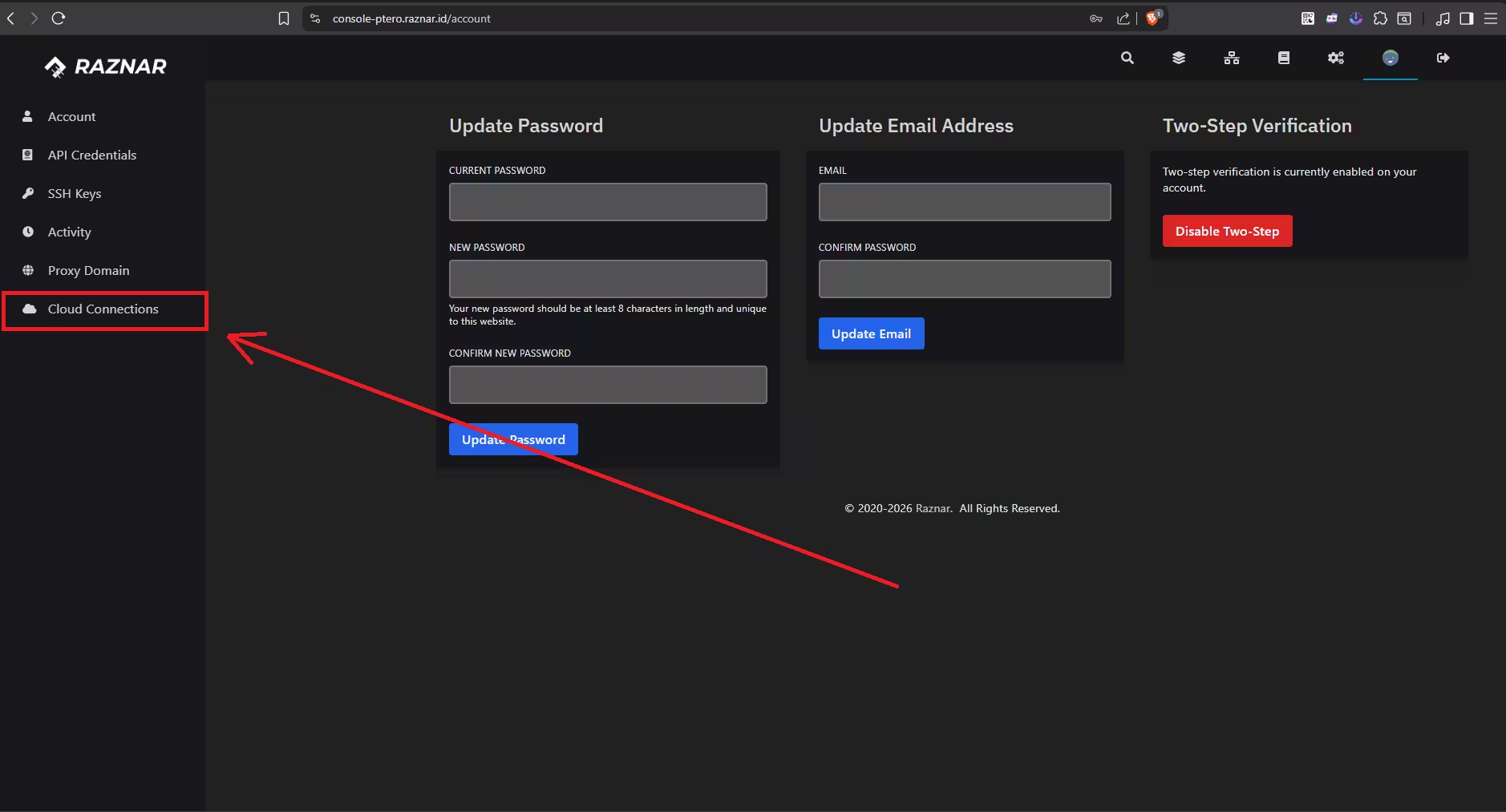
- Look at the navigation menu on the left side of the screen, then select the Cloud Connections menu.
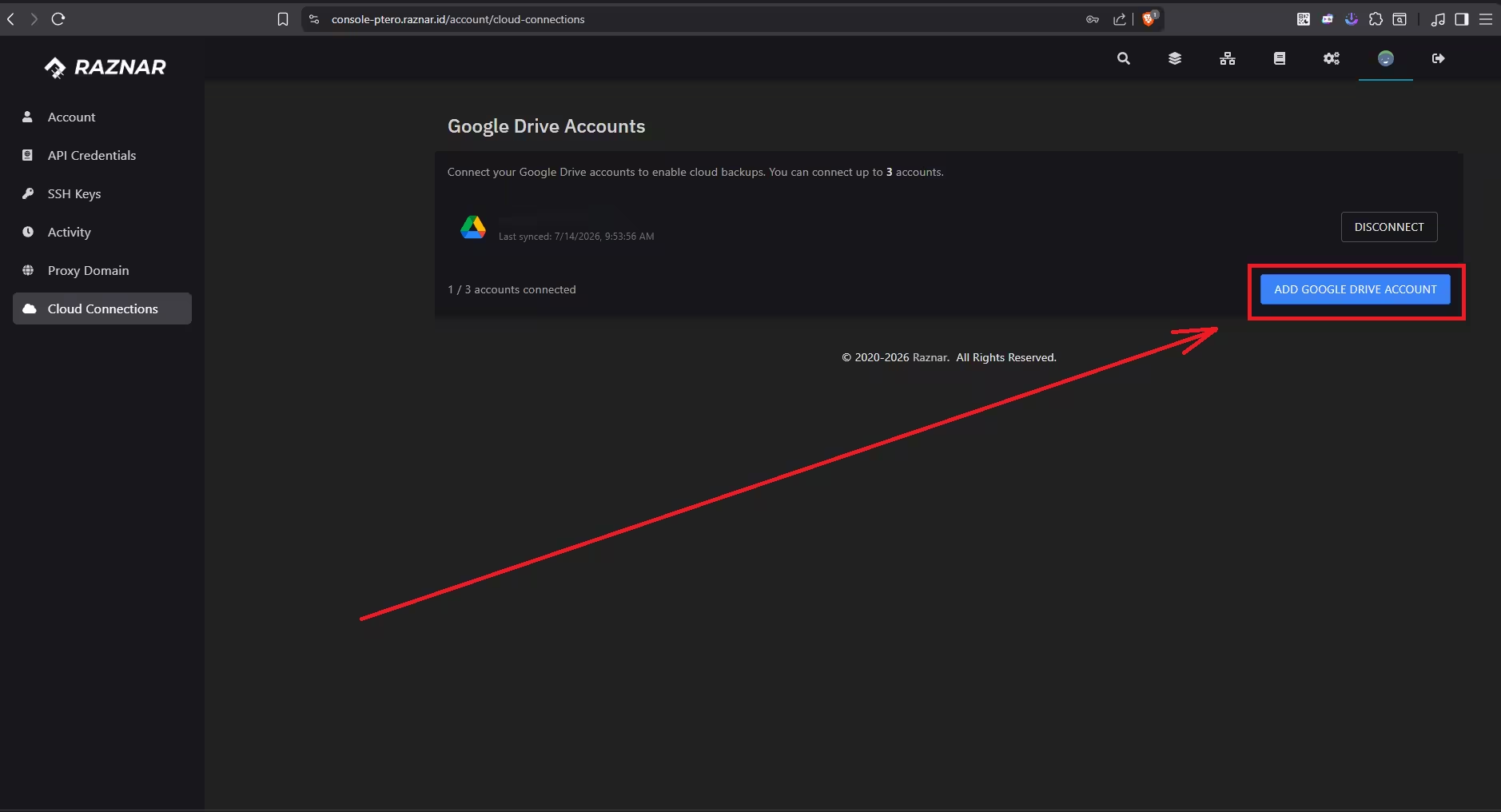
- In the Google Drive Accounts section, click the blue button labeled ADD GOOGLE DRIVE ACCOUNT.
- You'll be redirected to Google's authorization page. Choose the account (email) you want to use and grant access permission.
- If the connection is successful, your Google account email address will appear in that list.
- As additional info, you can connect up to a maximum of 3 different Google Drive accounts.
Step 2: Create a Cloud Backup
Once your Google Drive account is successfully connected, you can now return to the server management page to start making a backup.
- Open the main page (console) of the server you want to back up.
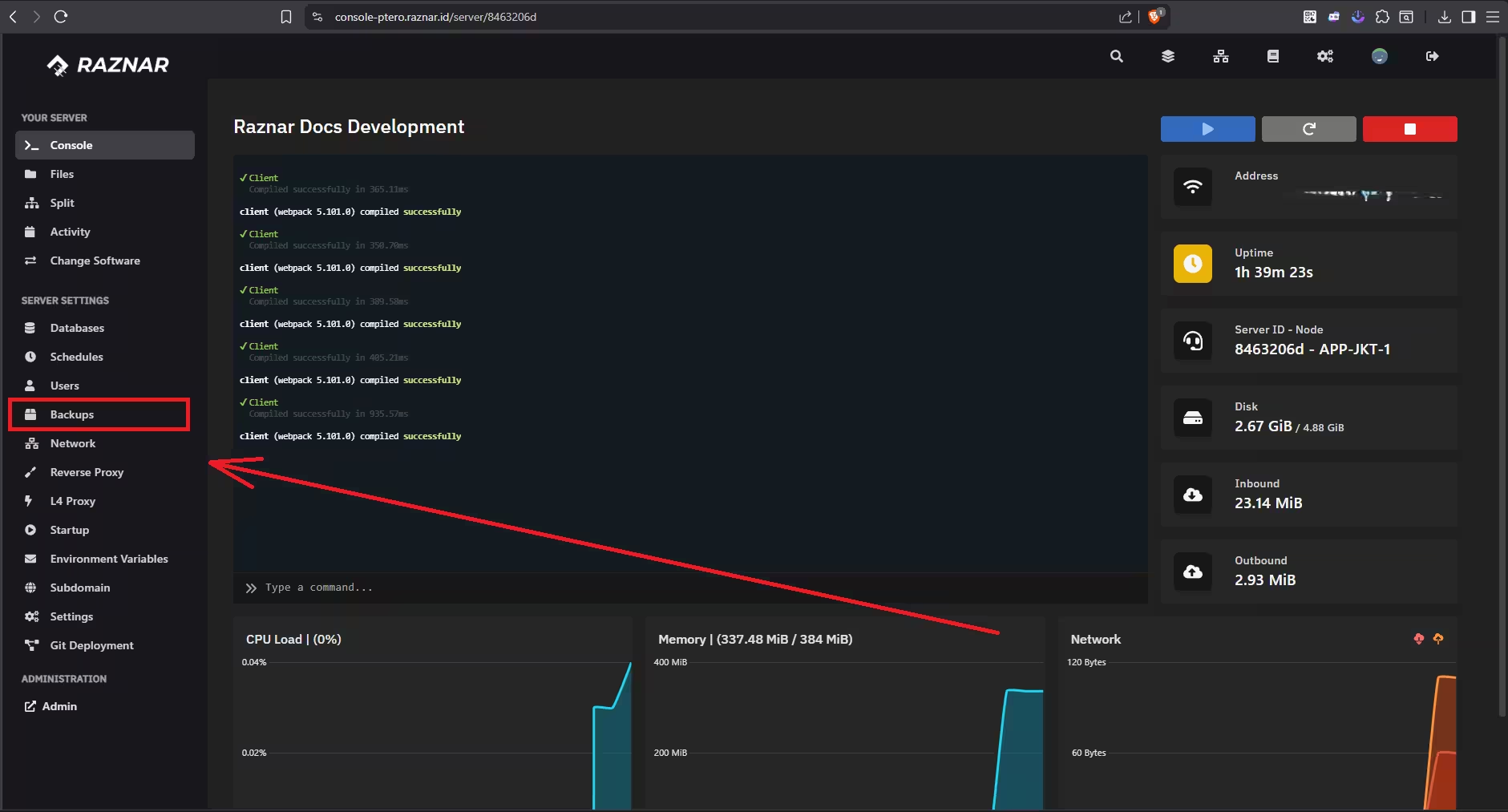
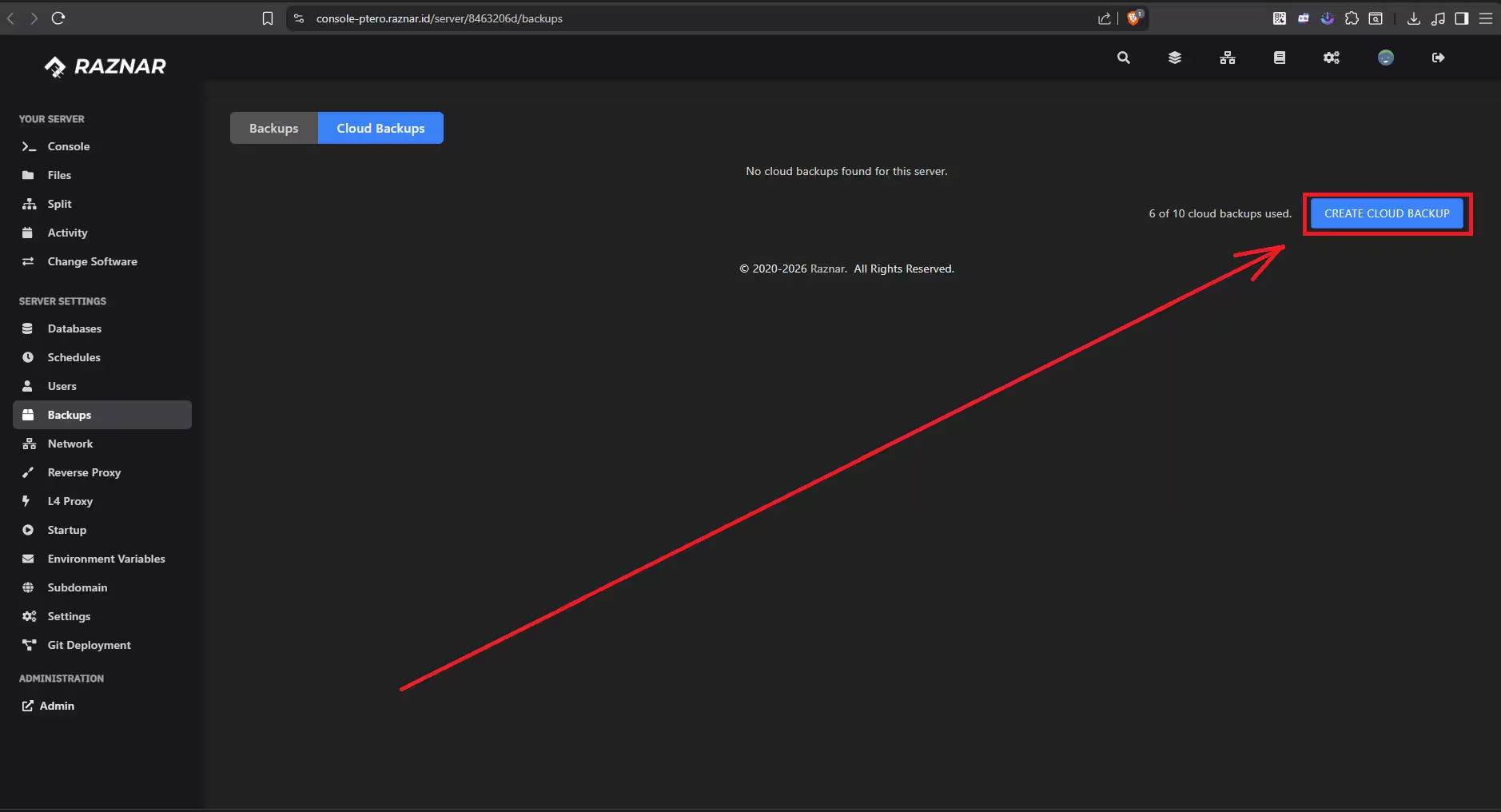
- In the row of menus on the left, click the Backups menu.
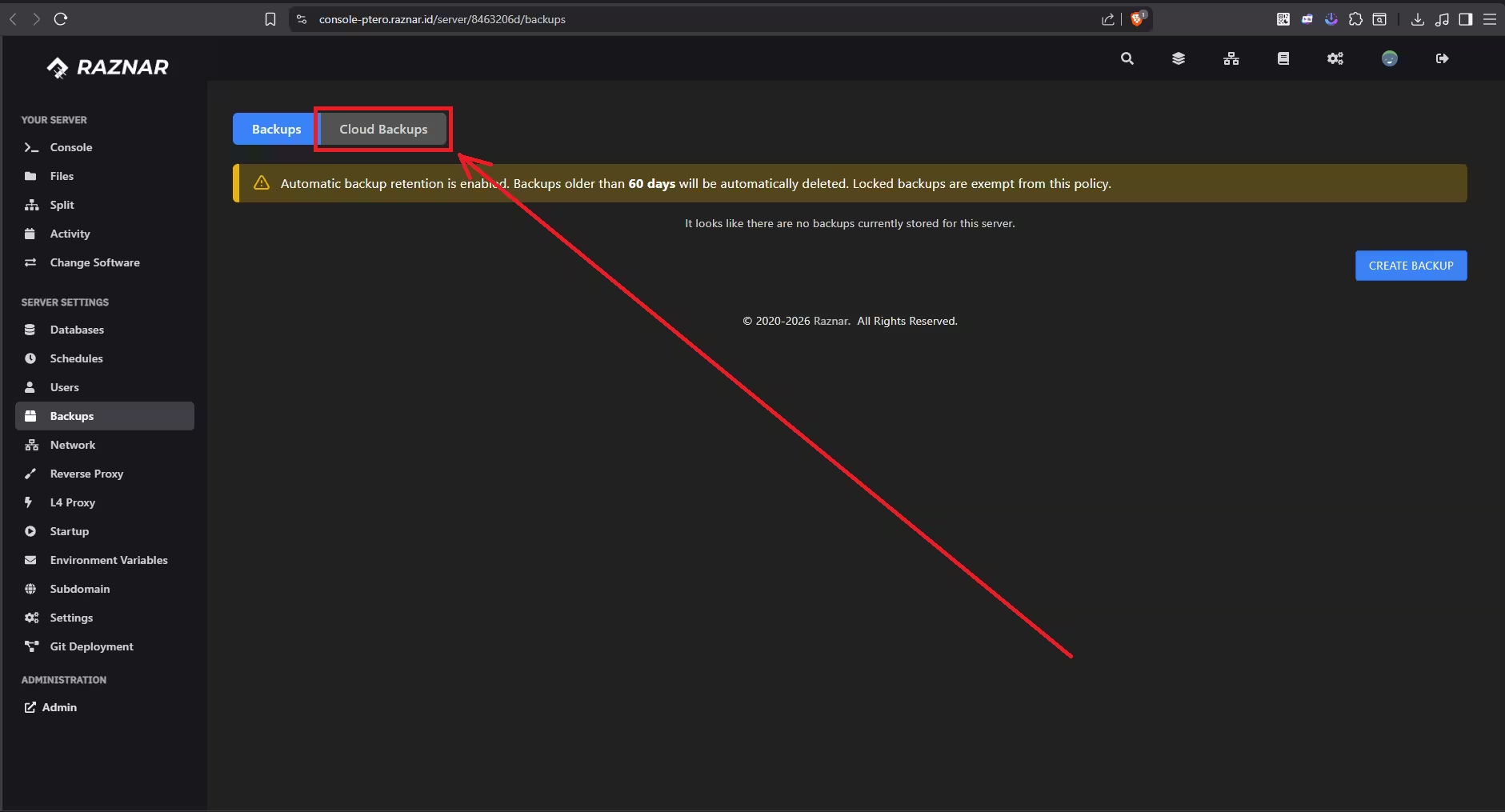
- At the top of the page, click the Cloud Backups tab (right next to the regular Backups tab).
- Click the blue button labeled CREATE CLOUD BACKUP.
- A pop-up for filling in the backup details will appear. Enter the backup name and Ignored Files if needed, then click Start Backup.
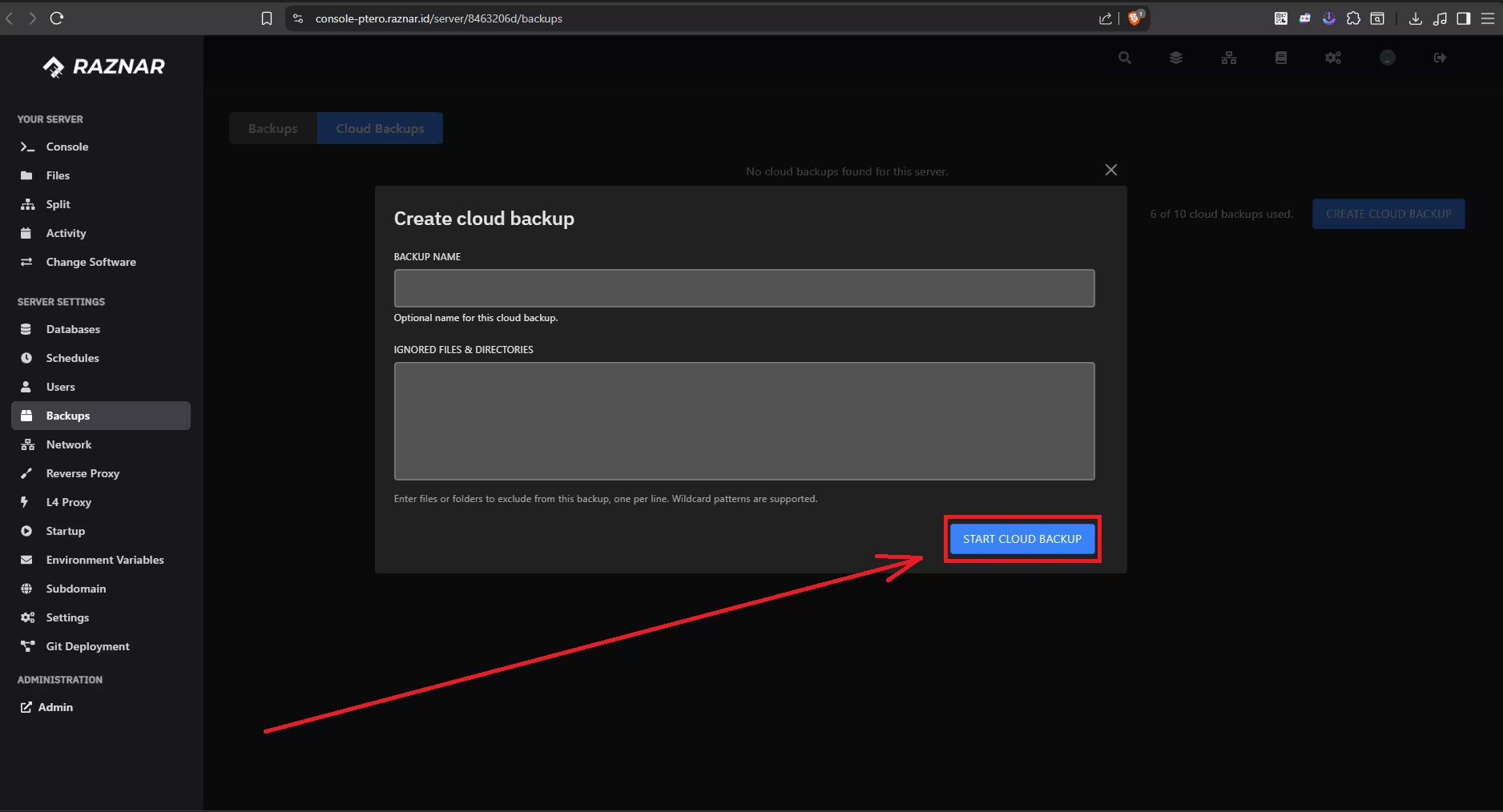
- The system will process and upload your data directly to Google Drive. Wait until the process finishes.
The Cloud Backup system has a quota limit that's separate from regular backups. Make sure you pay attention to the limit indicator shown on screen (for example: 6 of 10 cloud backups used) so that creating your new backup doesn't fail. If it's already full, delete old files first.