How to Back Up Your Server via the Panel System
Besides doing a manual backup through the File Manager, our Game Panel actually already provides a special feature to perform backups automatically! It's located in the navigation menu on the left.
This method is far more practical, organized, and safe. Here's the complete guide on how to use it:
Step 1: Go to the Backups Menu
- Log in to your server's Game Panel.
- Look at the row of navigation menus on the left side of the screen.
- Find and click the Backups menu.
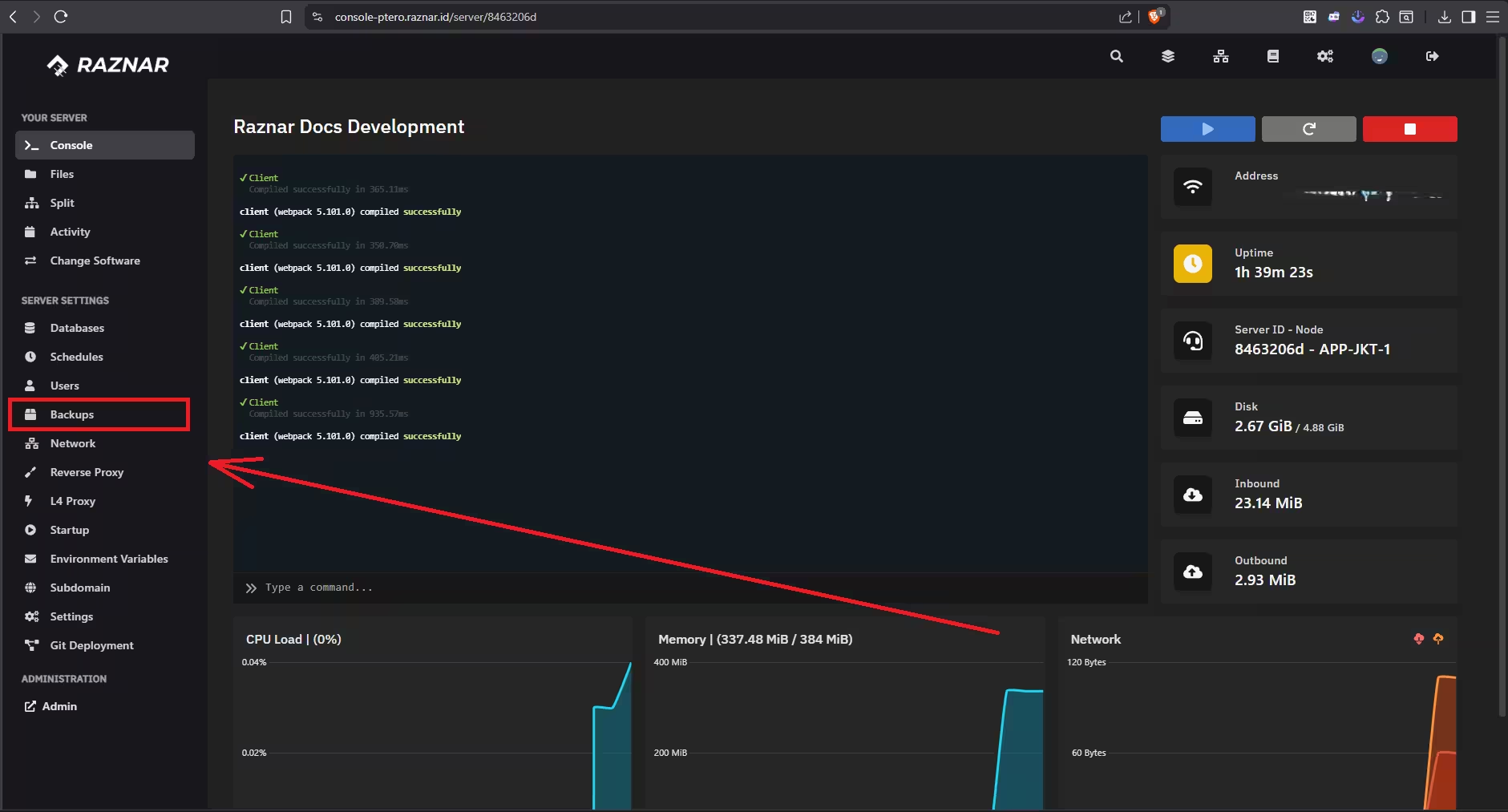
Step 2: Start Creating a Backup
- On the Backups page, you'll see a list of backups that have been created (if any). To create a new one, click the blue button labeled "Create Backup".
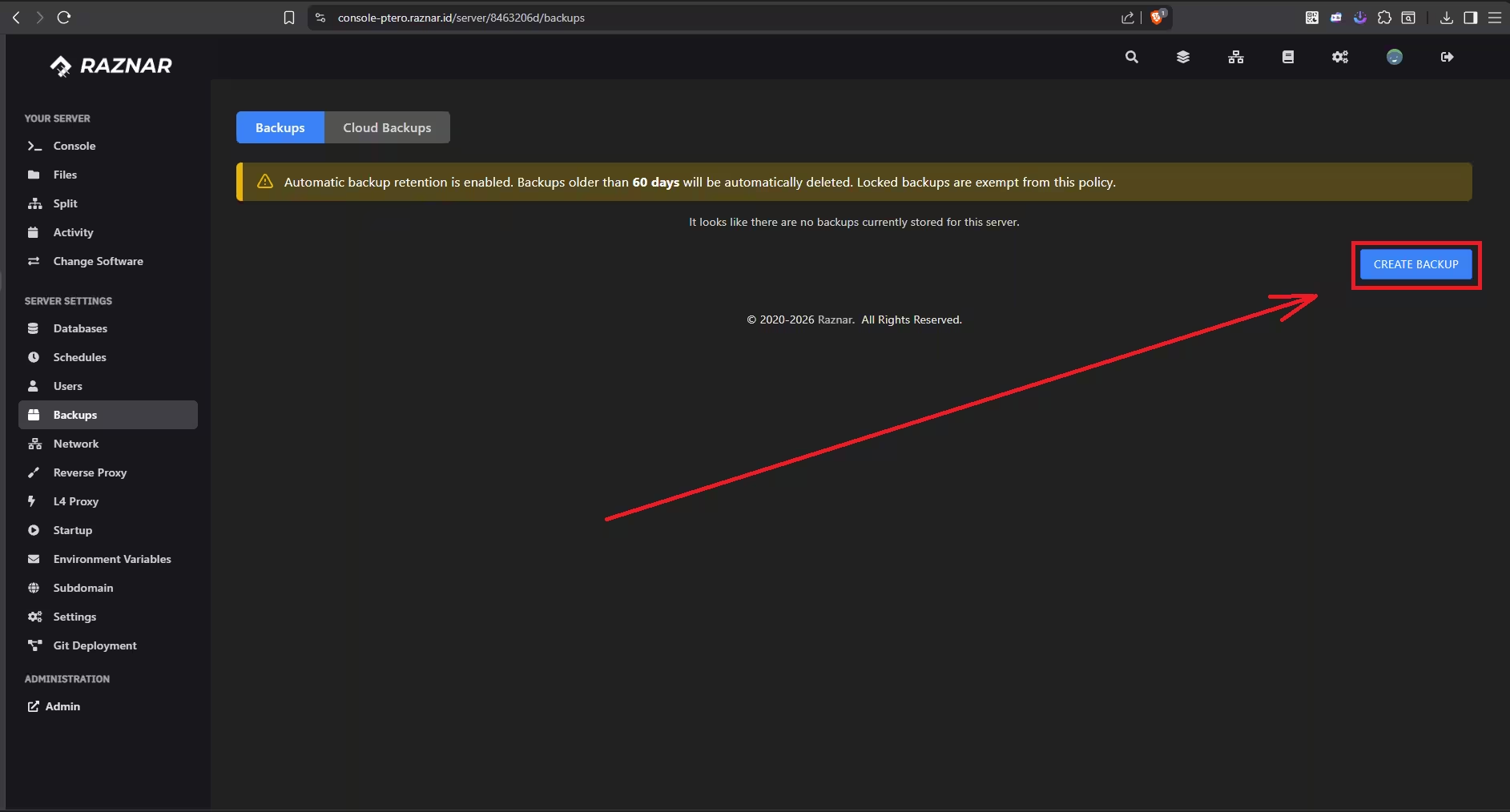
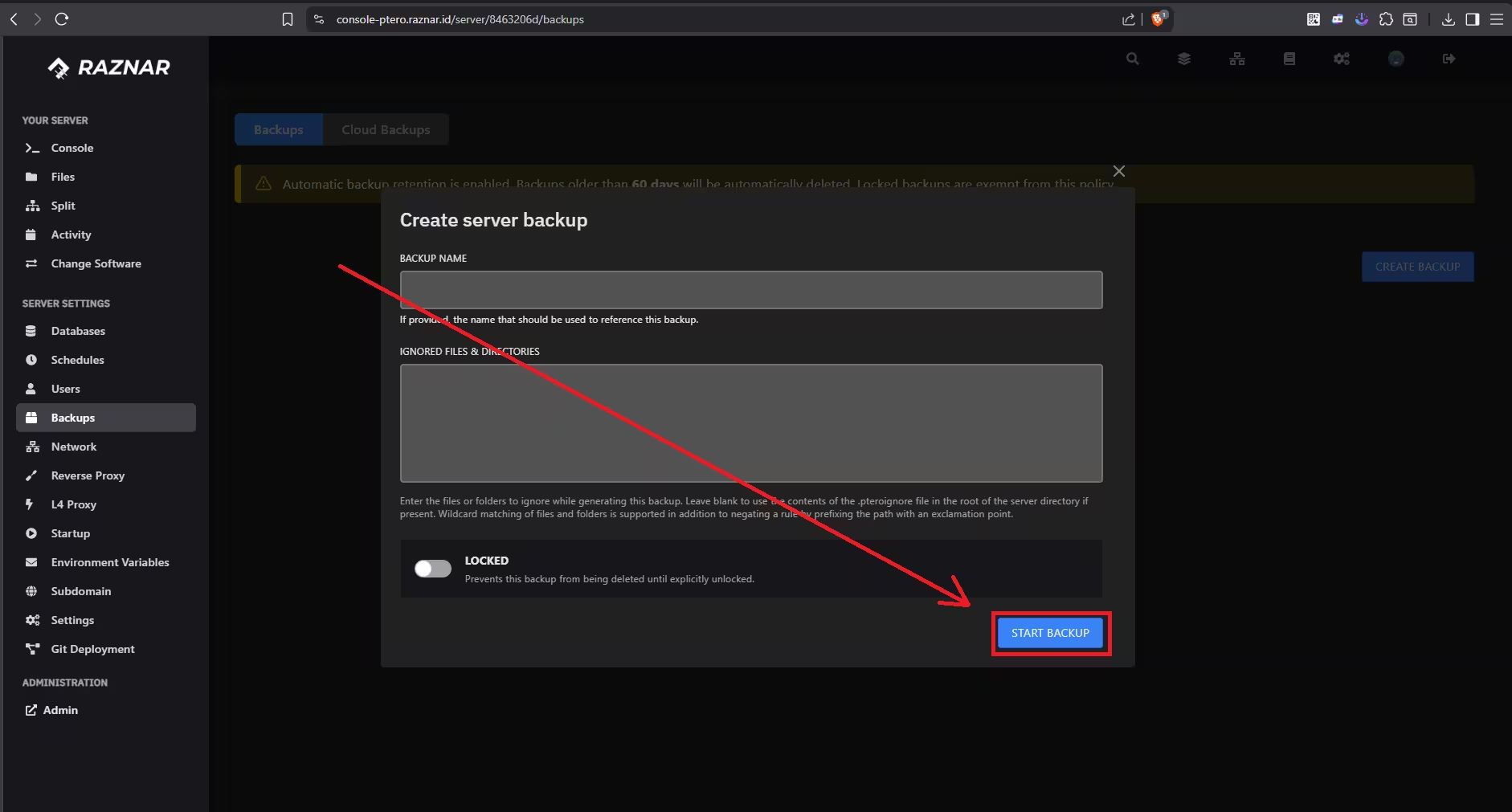
- A pop-up with input fields will appear. You can configure a few things here:
- Backup Name (Optional): Give your backup a name so it's easy to remember (Example: "Backup Before Version Change" or "Survival Map Backup"). If left empty, the system will automatically name it according to today's date and time.
- Ignored Files & Directories (Optional): If there are files or folders you don't want included in the backup (for example, so the file size isn't too large), type the folder name here. Example: Type
plugins/dynmap/orcoreprotect/. If you want to back up everything, just leave this field empty. - Locked: Check this option if you want the backup to be "locked". A locked backup can't be accidentally deleted until you unlock it again.
- Once everything is set, click the Start Backup button.
Step 3: Done & Backup Management
- The system will start gathering data and processing your backup. Wait a while (how long it takes depends on how large your server files are).
- Once finished, the backup file will appear in the list.
- For each backup file, you can click the three dots icon to its right to perform these 3 actions:
- ⬇️ Download: Download the backup file (in
.tar.gzformat) to your own computer's storage. - 🔄 Restore: Restore (rollback) the server's condition back to exactly how it was when this backup was created.
- 🗑️ Delete: Delete the backup file from the panel.
- ⬇️ Download: Download the backup file (in
BACKUP LIMIT
If your limit is already full (for example, a maximum of 5/5), you must delete one of the old backups first before you can create a new backup.