Minecraft Server Optimization
Does your server feel heavy or laggy? Maybe it's time to tweak the configuration files a bit. Luckily, this game panel has a "Server Optimization" feature that can help you automatically.
This feature will scan important files like server.properties, bukkit.yml, etc., then give suggestions on what needs to be changed so the server runs lighter.
Here is a step-by-step guide on how to use it:
1. Open the Optimization Menu
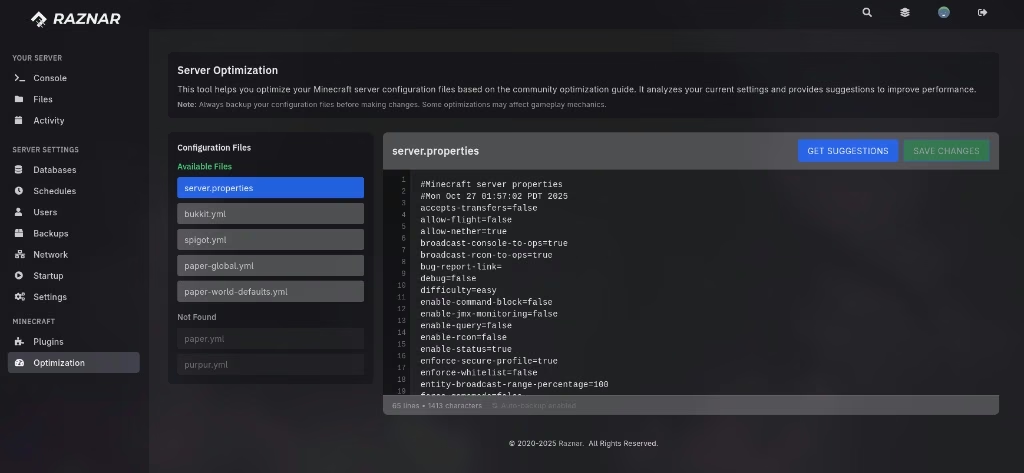
In the left sidebar of your server panel, navigate to the "MINECRAFT" section and click the "Optimization" menu.
2. Select a Configuration File
Inside the "Optimization" menu, you'll see a list of "Configuration Files". Choose one of the files you want to optimize.
- Example: Click
server.propertiesorbukkit.yml.
3. Get Suggestions
After the selected file opens in the text editor, click the blue "Get Suggestions" button at the top of the editor.
4. Review the Suggestions
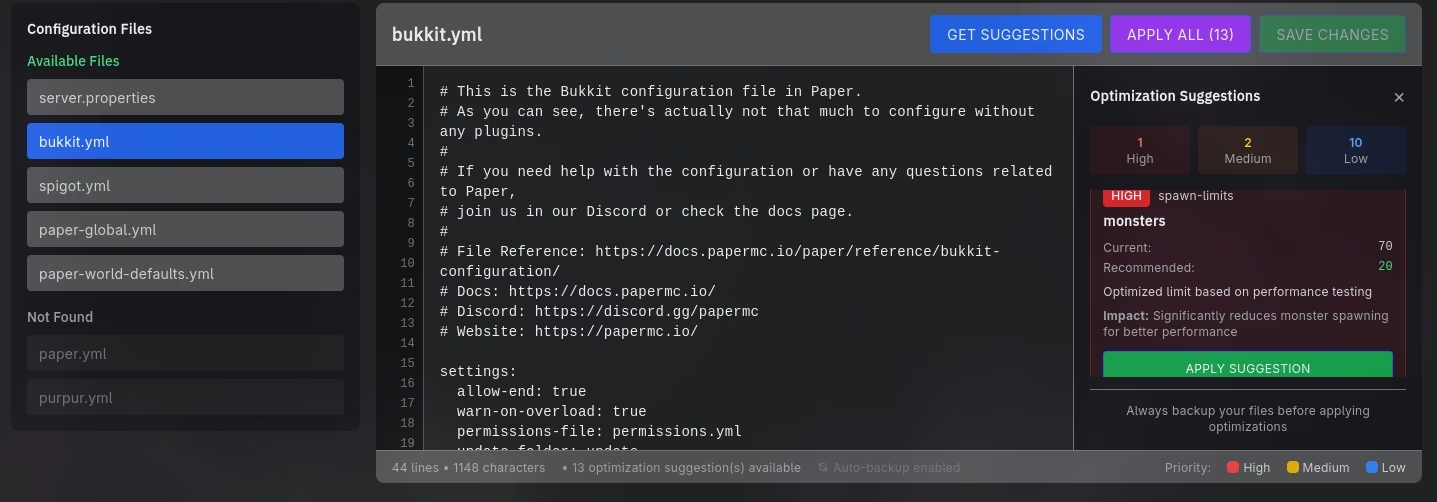
The panel will analyze your file and display an "Optimization Suggestions" sidebar on the right. Here you can see:
- Total Number of Suggestions: (The example in the image is 13).
- Priority: Suggestions are divided into three categories: High, Medium, and Low. 'High' suggestions usually give the most significant performance impact.
5. Apply the Suggestions
You have several options at this stage:
Option 1: Apply All
This is the easiest way. Click the purple "Apply All (x)" button (where 'x' is the number of suggestions). The panel will automatically change all the settings in your file according to all the suggestions found.
Option 2: Apply Partially (High & Medium)
If you don't want to apply all the suggestions (for example, wanting to avoid 'Low' changes that might alter gameplay), you can:
- View the suggestion details in the "Optimization Suggestions" sidebar (you can filter them by clicking the 'High' or 'Medium' buttons).
- Manually change the values in the text editor on the left according to those suggestions.
Currently, the "Apply All" button will usually apply all priorities (High, Medium, and Low). If you only want to apply 'High' and 'Medium', you may need to do it manually.
6. Save Changes
After you apply the changes (either through "Apply All" or manually), don't forget to click the green "Save Changes" button to save your configuration file.
7. Repeat (Optional)
Repeat steps 2-6 for other important configuration files to get maximum optimization results:
spigot.ymlpaper-global.ymlpurpur.yml(if using Purpur)
8. Restart the Server
Changes to the server configuration files won't take effect until the server is restarted. After you save all changes, perform a Restart on your Minecraft server so the new settings can be applied.