How to Install Minecraft Plugins
Plugins are additional modules that can be added to a Minecraft server to provide new features.
Required Plugins
To make your Minecraft server complete and functional, you need the following plugins:
1. Essentials
- Function: A core plugin that provides essential server commands and features
- Download: spigotmc.org/resources/essentialsx.9089/
- Features: Home, teleport, kit, economy, and basic commands
2. ViaVersion
- Function: Supports multiple Minecraft Java Edition versions
- Download: spigotmc.org/resources/viaversion.19254/
3. WorldEdit
- Function: A plugin for advanced world editing and manipulation
- Download: dev.bukkit.org/projects/worldedit
How to Download Plugins
Step 1: Access the Server Panel
- Open your browser and visit console-ptero.raznar.id
- Log in with your account
- Select the Minecraft server you want to install plugins on
Step 2: Go to the Plugins Menu
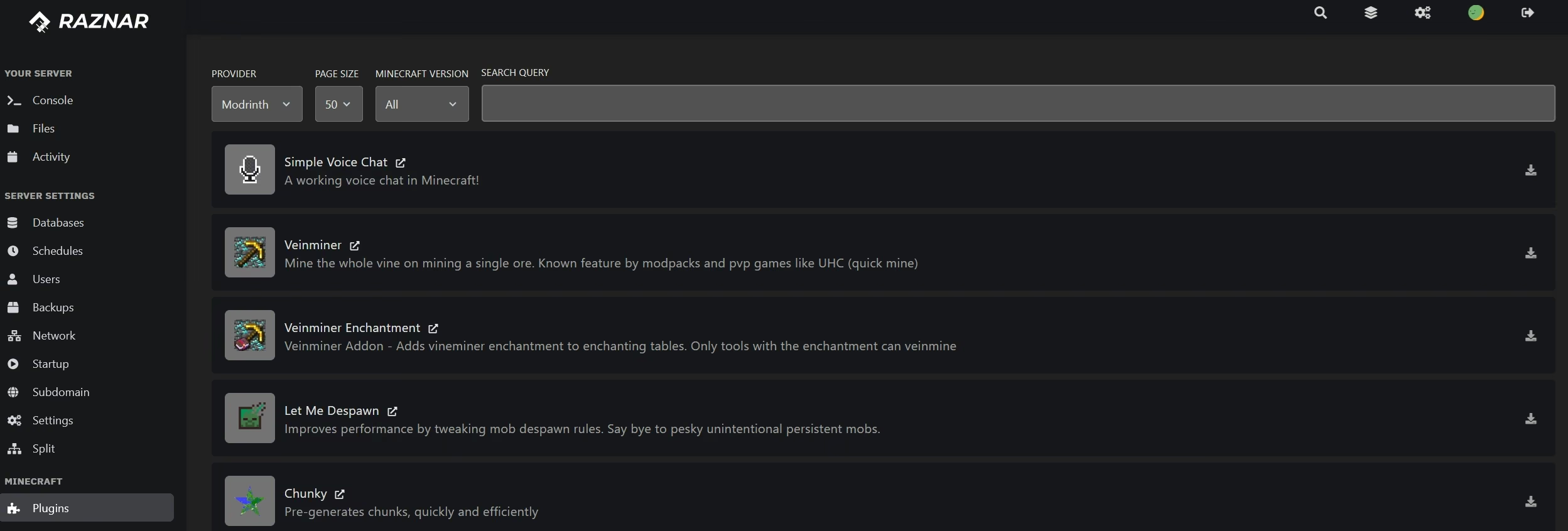
- On the server dashboard, click the Plugins menu in the left sidebar
- The view will look like the following image:
How to Install Plugins
Step 1: Install the Essentials Plugin
- In the Plugins menu, search for "Essentials" or "EssentialsX"
- Click the Install button on the Essentials plugin
- Wait for the installation process to finish
- Make sure the plugin status changes to "Installed"
Step 2: Install the ViaVersion Plugin
- Search for the "ViaVersion" plugin in the plugin list
- Click the Install button
- Wait for the installation process to finish
Step 3: Install the WorldEdit Plugin
- Search for "WorldEdit"
- Click the Install button
- Wait for all plugins to install perfectly
Step 4: Restart the Server
- After all plugins are installed, click the Console menu
- Type the
restartcommand or click the restart button - Wait for the server to finish restarting
How to Set Up Plugins
Step 1: Check the Plugin Folder
After the server restarts, new folders will appear inside the plugins folder:
Essentials(or a similar name)ViaVersionWorldEdit
Step 2: Set Up Permissions
- Open the File Manager in the server panel
- Navigate to the
plugins→Essentialsfolder - Open the
config.ymlfile - Edit the basic permission configuration:
# Permission settings
permissions:
  # Allow players to use /home
  home: true
  # Allow players to use /tpa
  tpa: true
  # Allow players to use /kit
  kit: true
Step 3: Configure the Economy
- Open the
config.ymlfile in the Essentials folder - Edit the economy section:
economy:
  # Starting balance for new players
  starting-balance: 1000.0
  # Maximum balance a player can have
  max-money: 1000000.0
  # Currency symbol
  currency-symbol: "$"
Step 4: Set Up Kits
- Open the
kits.ymlfile in the Essentials folder - Add a basic kit:
starter:
  delay: 86400
  items:
    - STONE_PICKAXE 1
    - STONE_AXE 1
    - STONE_SHOVEL 1
    - BREAD 16
    - TORCH 32
Step 5: Save and Restart
- Click the "Save Content" button
- Open the Console menu
- Type the
restartcommand - Wait for the server to finish restarting
Verifying the Installation
Check Plugin Status
- In the console, type the command:
/plugins - Make sure all plugins appear with the status "enabled":
- Essentials
- ViaVersion
- WorldEdit
Test Basic Commands
-
Test the home command:
- Type
/hometo set a home - Type
/hometo teleport to your home
- Type
-
Test the teleport command:
- Type
/tpa [player]to request a teleport - Type
/tpahere [player]to request that a player teleport to you
- Type
-
Test the kit command:
- Type
/kit starterto claim the starter kit
- Type
Troubleshooting
Plugin Doesn't Appear
- Solution: Restart the server after installing the plugin
- Check: The console log for error messages
Server Crashes After Installing a Plugin
- Solution: Remove the problematic plugin from the plugins folder
- Check: Whether the plugin version is compatible with the server
Command Doesn't Work
- Solution: Check the permissions in the config.yml file
- Check: Make sure the plugin is enabled
"Invalid Configuration" Error
- Solution: Make sure the YAML format is correct
- Check: There are no extra spaces or special characters
Tips and Tricks
1. Back Up Your Configuration
- Always back up the config.yml file before editing
- Use the panel's automatic backup feature
2. Update Plugins Regularly
- Old plugins can cause compatibility issues
- Update plugins at least once a month
3. Monitor Performance
- Too many plugins can slow down the server
- Use a monitoring plugin to check performance
4. Custom Permissions
Create permission groups for admins and moderators:
groups:
  admin:
    permissions:
      - essentials.*
      - worldedit.*
  moderator:
    permissions:
      - essentials.home
      - essentials.tpa
      - essentials.kit
Conclusion
After following this tutorial, your Minecraft server will:
- ✅ Have a complete set of basic commands and features
- ✅ Support multiple Java Edition versions
- ✅ Have a structured permission system
- ✅ Be ready for various purposes
If you run into any issues, don't hesitate to:
- Check the server console log
- Consult with the support team
- Join the Discord community
⚠️ Warning:
Don't install plugins from unknown sources. Malicious plugins can damage your server or steal player data.