Making Your Server Bedrock-Compatible
What is Geyser?
Geyser is a "bridge" that allows Minecraft Bedrock Edition players (mobile, console, Windows 10) to join Minecraft Java Edition servers.
To make this work smoothly and safely, we need:
- A Dedicated Port: An additional port (UDP) as the entry point for Bedrock players.
- Supporting Plugins: GeyserMC, Floodgate, and ViaVersion.
Step 1: Installing the Plugins
Before setting up the configuration, make sure the "ingredients" are ready.
- Open your server panel and go to the Plugins menu.
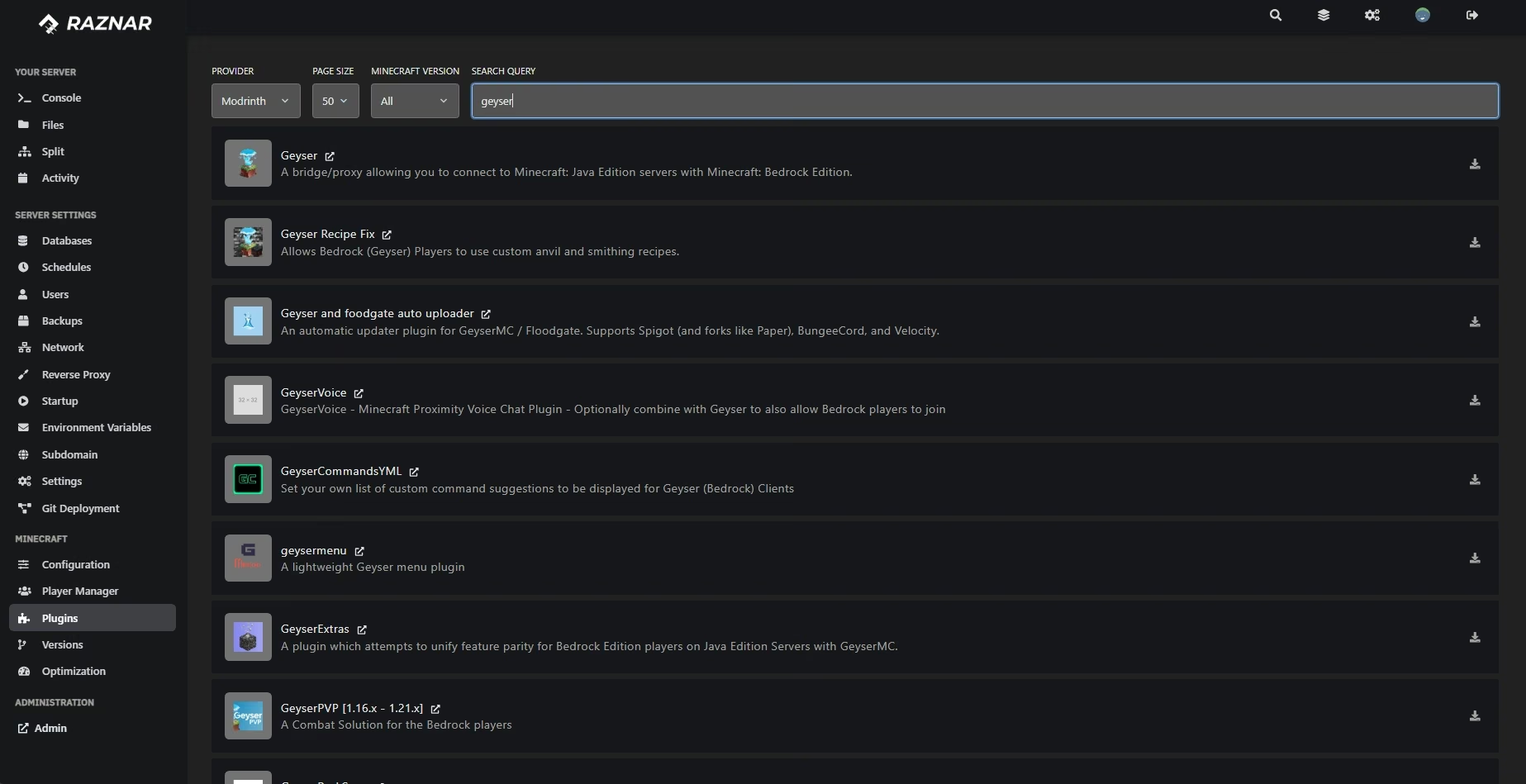
- Find and install the following plugins:
- GeyserMC (The core Bedrock-Java bridge).
- Floodgate (So Bedrock players can log in without a Java/Premium account).
- ViaVersion (Recommended, so newer Bedrock versions can join an older Java server).
- Restart your server once to generate the plugin folder.
Step 2: Creating a Dedicated Port (Allocation)
Bedrock players need a different entry point than Java players. We have to create it first.
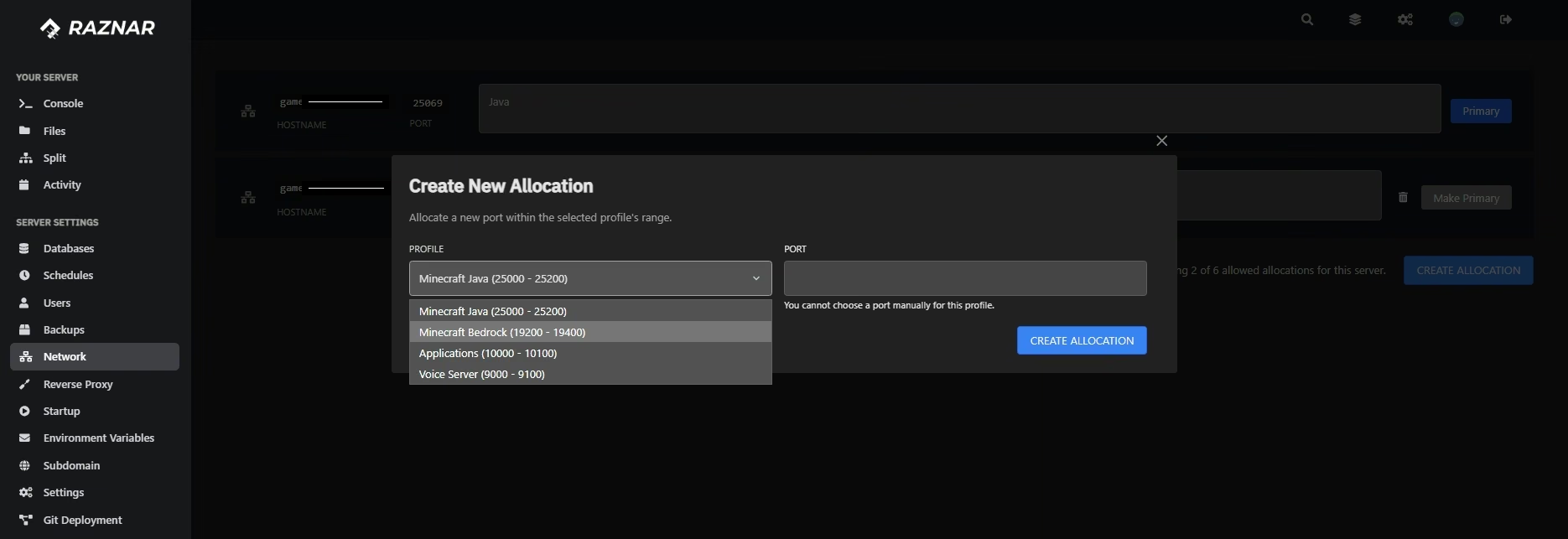
- Open the Network menu in the panel sidebar.
- Click the Create Allocation button.
- Under Profile, select "Minecraft Bedrock (19200 - 19400)".
- Click the Create Allocation button.
IMPORTANT
Note the new Port that appears (EXAMPLE: 19202). This will be your "Bedrock Port".
Step 3: Configuration Through the Panel UI
We don't need to bother editing the config.yml file manually. The Raznar panel has a visual configuration feature.
- Open the Configuration menu in the left sidebar (under the Minecraft section).
- Click the blue button/tab labeled Geyser YAML at the top.
The settings view will open. Adjust the contents as follows:
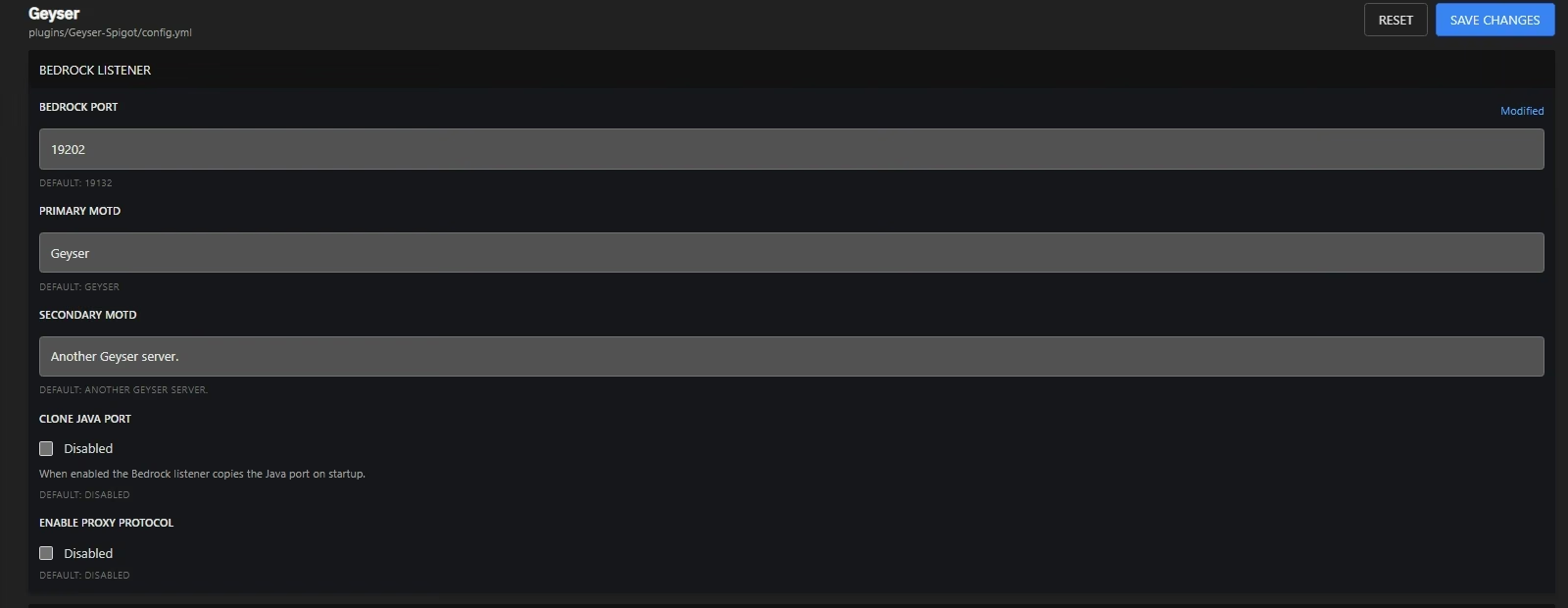
A. Bedrock Settings (Listener)
- BEDROCK PORT: Enter the dedicated port you just created in Step 2 (Example:
19202). - CLONE JAVA PORT: Make sure this is Disabled (unchecked), since we're using a different port.
B. Java Backend Settings (Remote)
This tells Geyser where to forward players (that is, to your own Java server).
- REMOTE ADDRESS: Fill in the Address shown near Console or near the start button.
- REMOTE PORT: Enter your Java Server's Main Port (the port you use to join, e.g.
25069). - AUTHENTICATION: Change it to
floodgate.- Why floodgate? So Bedrock players can join directly without having to buy a Java Edition account.

Step 4: Save and Restart
- Scroll up or down, then click the SAVE CHANGES button.
- Go back to the Console menu.
- Restart your server.
Done!
Now your server can be joined through two routes:
- Java Players: Join using the Main IP (Example:
ip-address:25069). - Bedrock Players: Join using the Main IP but the Bedrock Port (Example:
ip-address:19202).