Guide to Resetting and Changing Your Web Billing Password
Can't log in to Web Billing because you forgot your password? Or did you just buy a server and want to create your own web billing password?\
Don't worry, the process of resetting or changing your password in Web Billing is very easy.
Method 1: If You Forgot Your Password (Can't Log In)
Use this method if you can't get into the web billing page at all.
Step 1: Open the Login Page
- Open the Raznar Web Panel.
- Below the Login button, find and click the "Forgot password?" text.
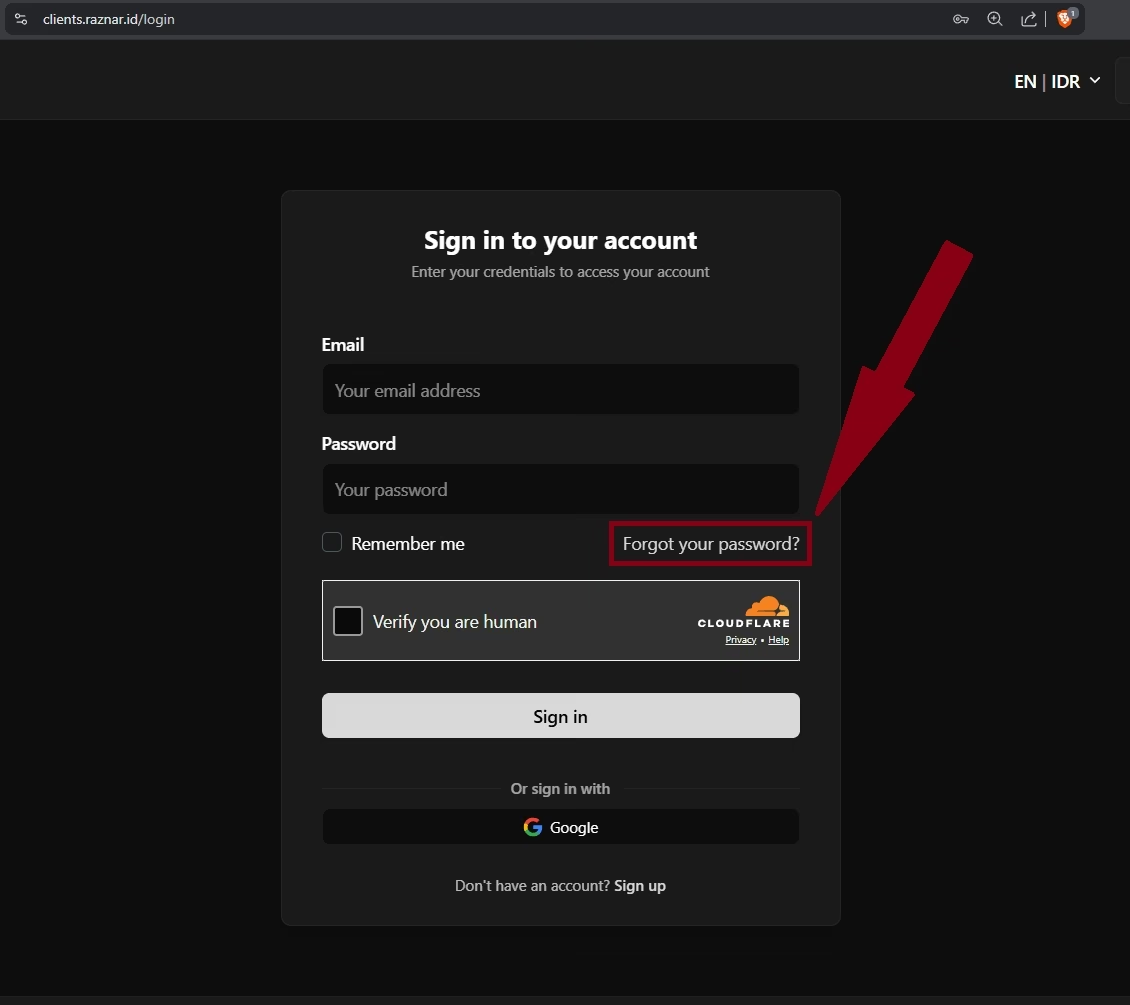
Step 2: Enter Your Email
- Enter the Email Address registered to your Raznar account.
- Click the "Reset password" button.

Step 3: Check Your Email Inbox
- Open your email app (Gmail/Yahoo).
- Find the incoming email from the panel system (usually with the subject "Password Reset").
- Note: If it's not in your main inbox, try checking the Spam or Junk folder.
- In that email, click the button or link labeled "Reset Password".
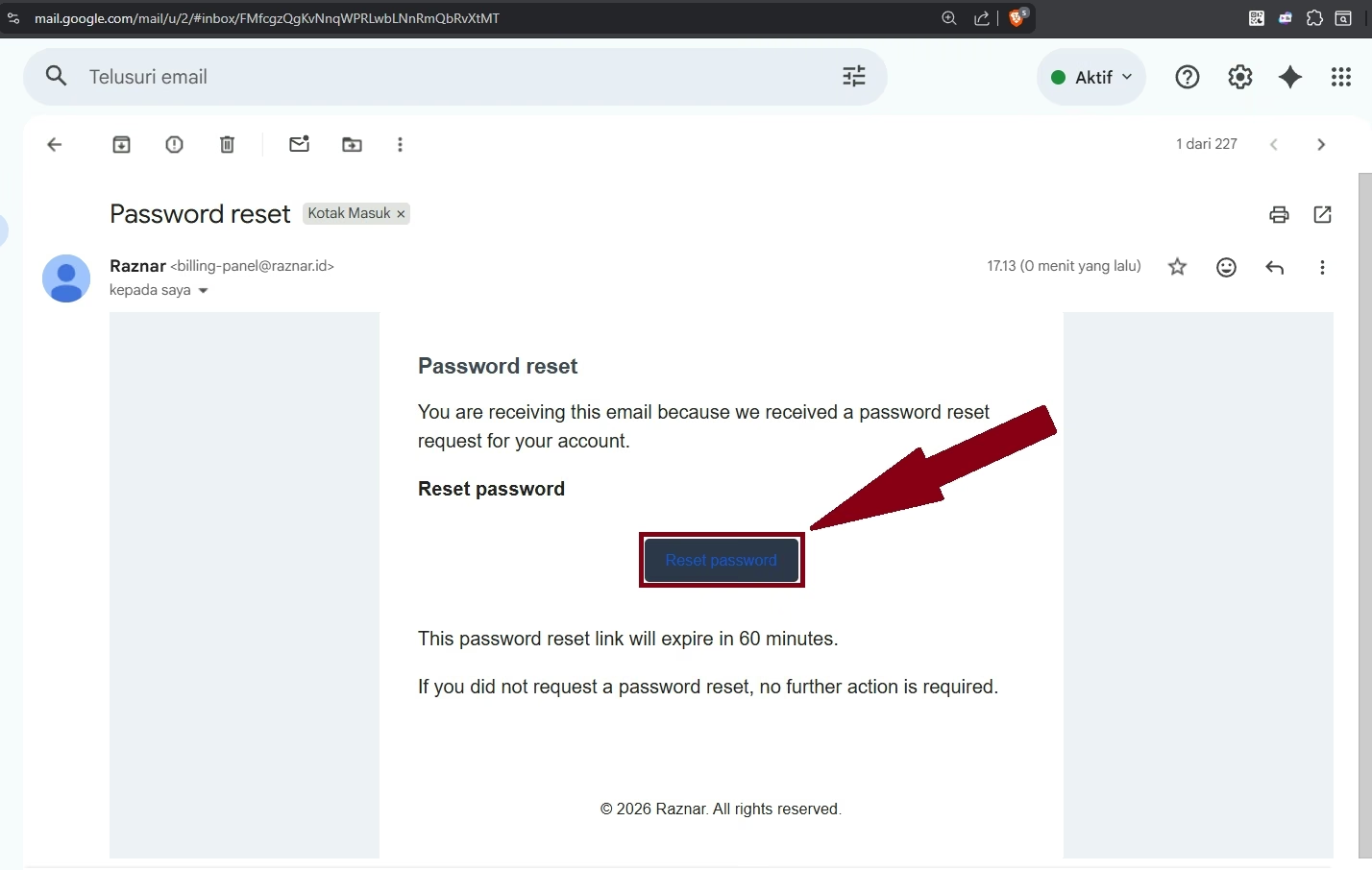
Step 4: Create a New Password
- That link will take you back to the web panel.
- Enter the New Password you want.
- Retype that password in the confirmation field.
- Click the "Reset Password" button. Done! Now you can log in with your new password.

SAFE PASSWORD TIPS
So your server isn't easy to hack, use a combination of uppercase letters, lowercase letters, numbers, and symbols (like @, #, or !). Avoid using your birthday or your own name.