Guide to Upgrading Your Server Service
Is your server getting busier and starting to feel heavy? Or you want to add plugins but your RAM is already in the red? That's a sign it's time to Upgrade.
At Raznar, you can increase your server's specifications anytime without losing data. The system is automatic and you only need to pay the difference.
Follow these steps:
Step 1: Go to the Service Dashboard
- Log in to the Raznar Web Billing page.
- On the main page (Dashboard), find the "Active Services" box.
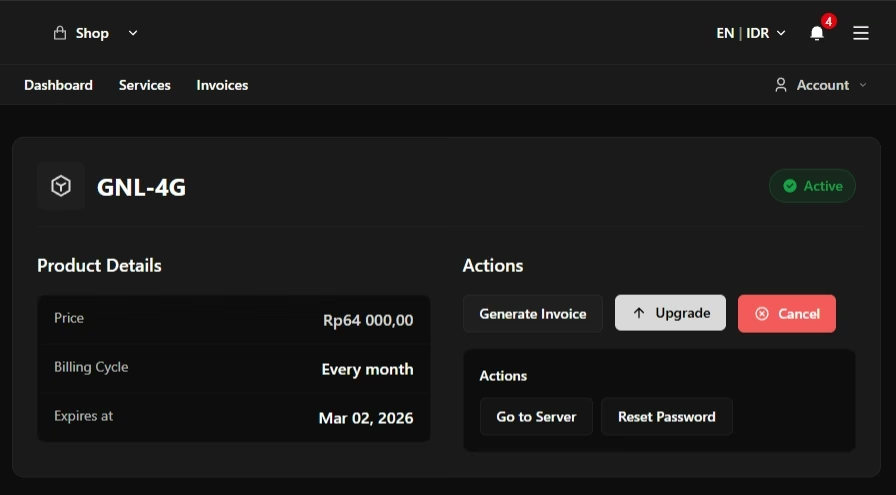
- Click on the server service you want to upgrade (for example:
GNL-4G).
Step 2: Choose the Upgrade Menu
After entering your server product detail page:
- Find the "Actions" menu on the left or the shortcut button on screen.
- Choose the "Upgrade" option.
Step 3: Choose a New Package (RAM)
You'll see a list of available packages.
- Current Plan: Your current package (for example: 4GB).
- New Plan: The target package (for example: 6GB).
Choose the package you want, for example we'll pick GNL-6G (6 GB RAM), then click the "Choose Product" button.
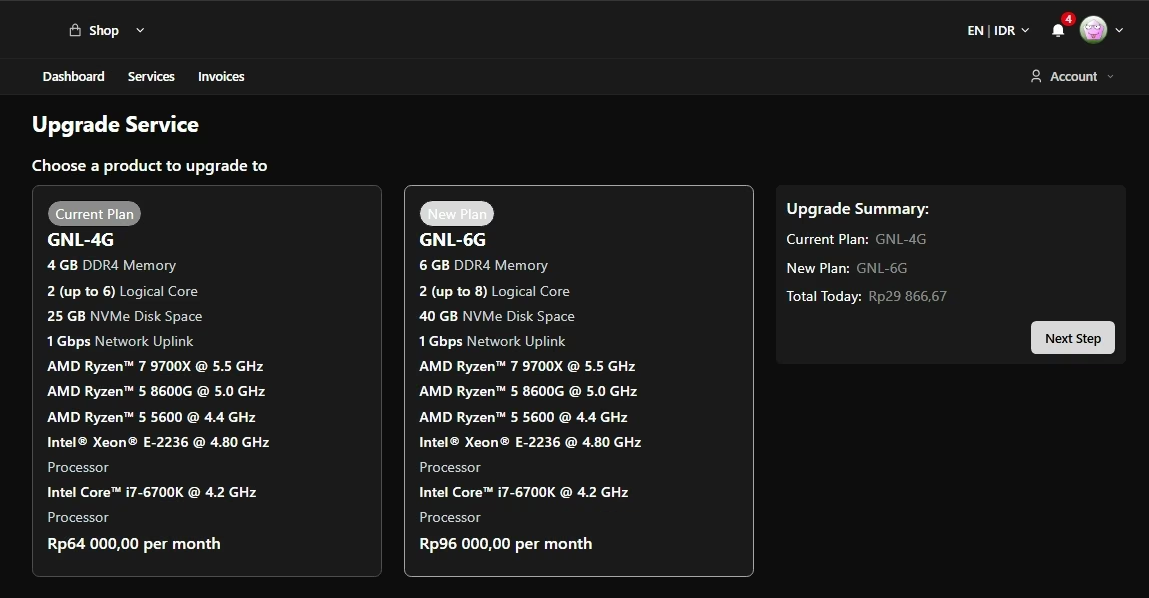
Don't be surprised if the price is cheap! Raznar uses a Prorata system. You don't pay the full price, but only pay the price difference for the rest of your active period.
Simulation Example:
- New Package Price (6GB): Rp 96,000
- Old Package Price (4GB): Rp 64,000
- What you have to pay: 96,000 - 64,000 = Rp 32,000
Step 4: Additional Configuration (IMPORTANT!)
After choosing a RAM package, you can choose CPU Priority. Be careful here so you don't get unwanted additional charges.
Case: You Only Want to Upgrade RAM (Without Upgrading CPU) If you only need more RAM but feel that a 2 Core CPU is enough:
- Look at the CPU Priority column.
- Choose the same option you're using now if you don't want to upgrade the CPU Cores as well.
- Don't choose the 6 Cores or 8 Cores if you don't really need them.
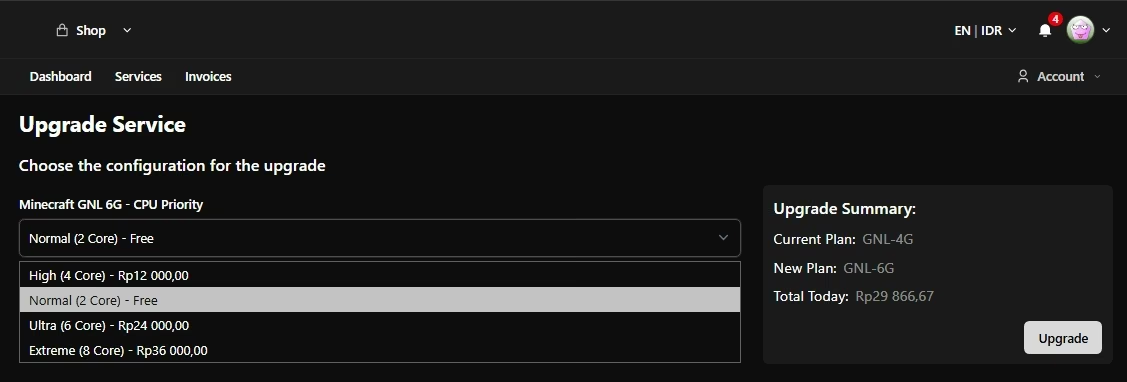
If it's correct, the Upgrade Summary box on the right will show the exact total cost (just the RAM difference). Click the "Click to Continue" or "Upgrade" button.
Step 5: Payment
- The system will automatically create an Invoice for the price difference mentioned above.
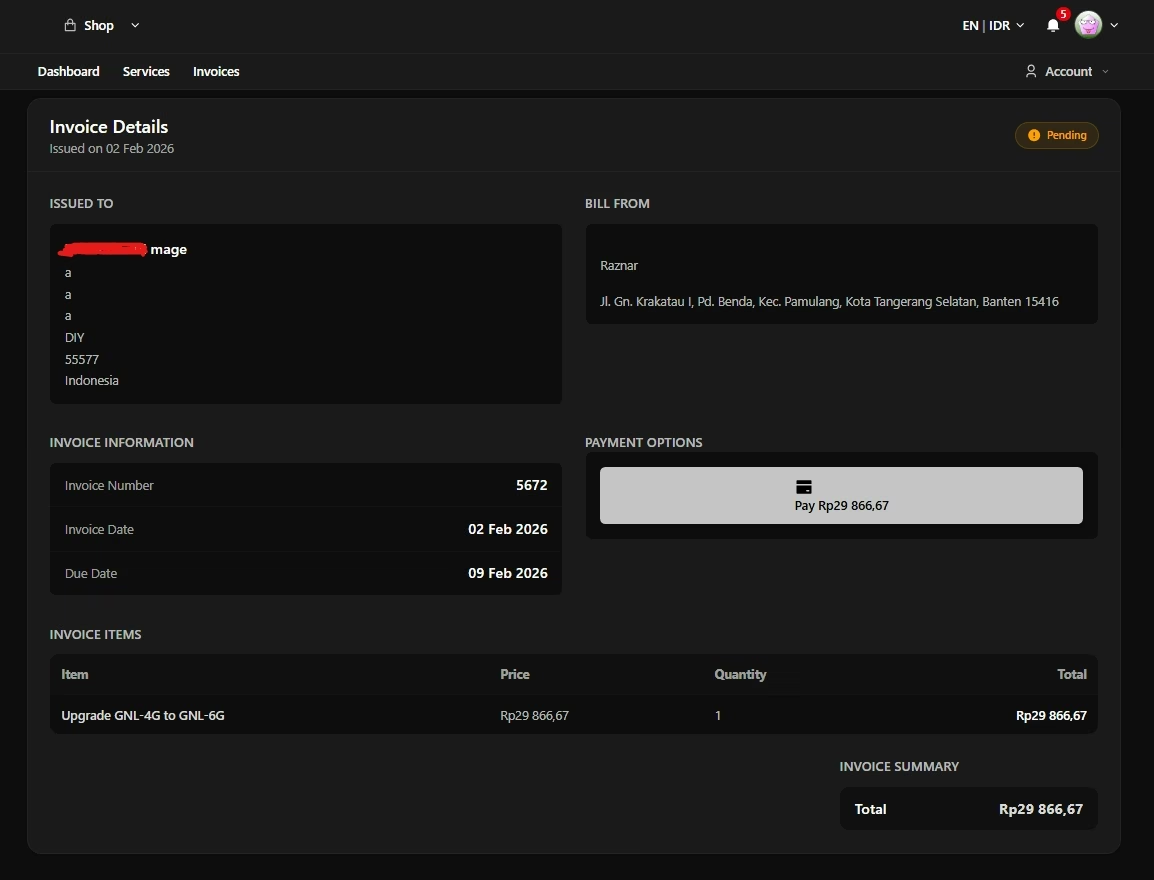
- Make the payment using your favorite method (for example: QRIS).
- After a successful payment, the system will process the upgrade Automatically.
Step 6: Apply the Changes (Restart)
The upgrade is administratively complete, but your server hasn't felt it yet.
- Open the Game Panel (Pterodactyl Panel).
- Restart your server.
- When the server comes back on, check the RAM indicator. It should now have increased capacity (for example to 6GB).
Congratulations! Your server is now roomier and ready to hold more players.