How to Connect a Google Account to the Billing Website
Tired of typing your email and password every time you want to pay a bill or check your server? Better to just link your Google account to the Raznar billing website.
Once it's connected, next time you only need a single click on the "Login with Google" button—no more hassle of worrying about a forgotten password.
Here are the easy steps:
Step 1: Go to the Billing Dashboard
- Open your browser and log in to the Raznar billing website as usual.
- You'll be taken straight to its main page (Dashboard).
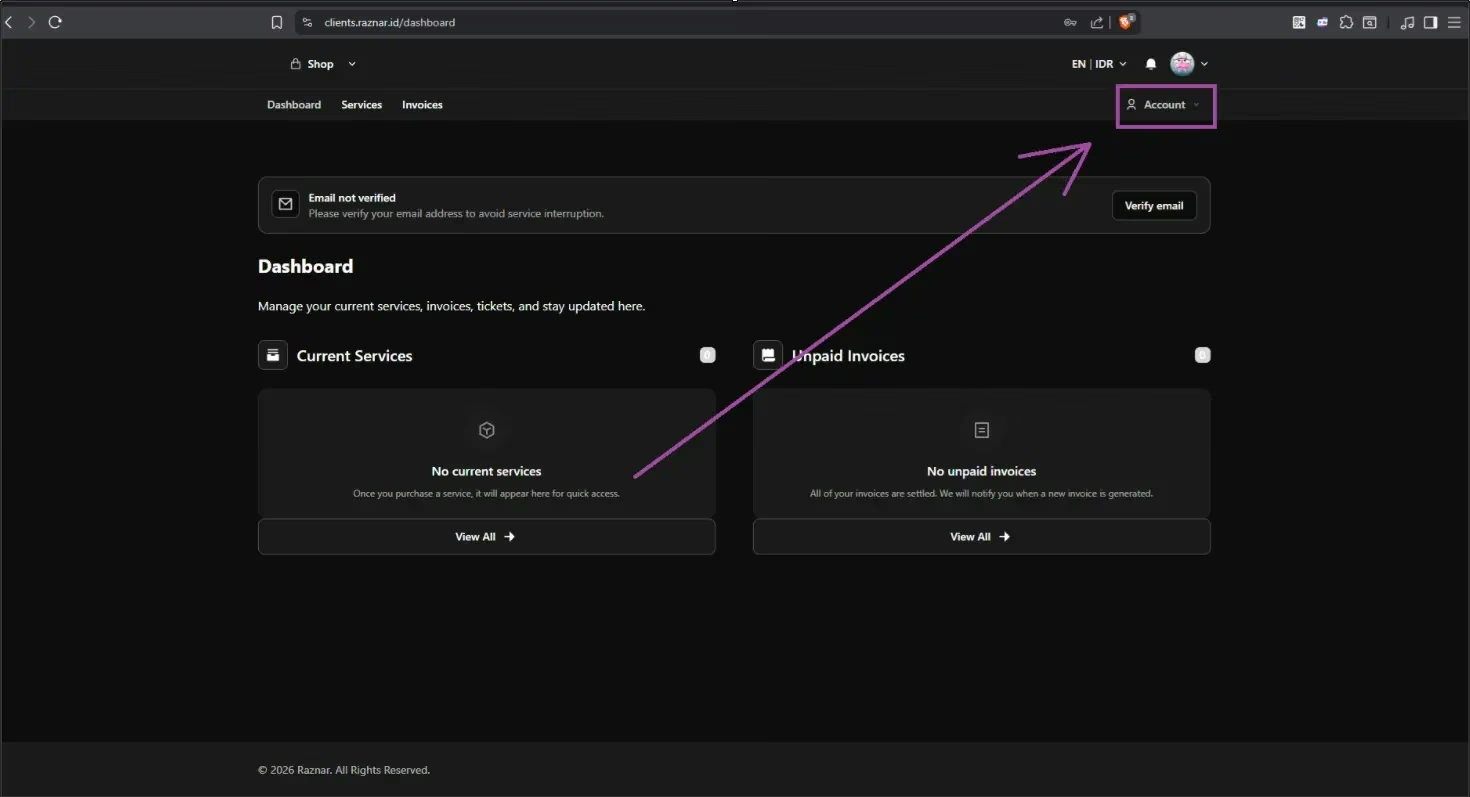
- Look at the top-right corner of the screen and click the "Account" menu, which is right next to the bell icon.
Step 2: Find the Platform Connections Menu
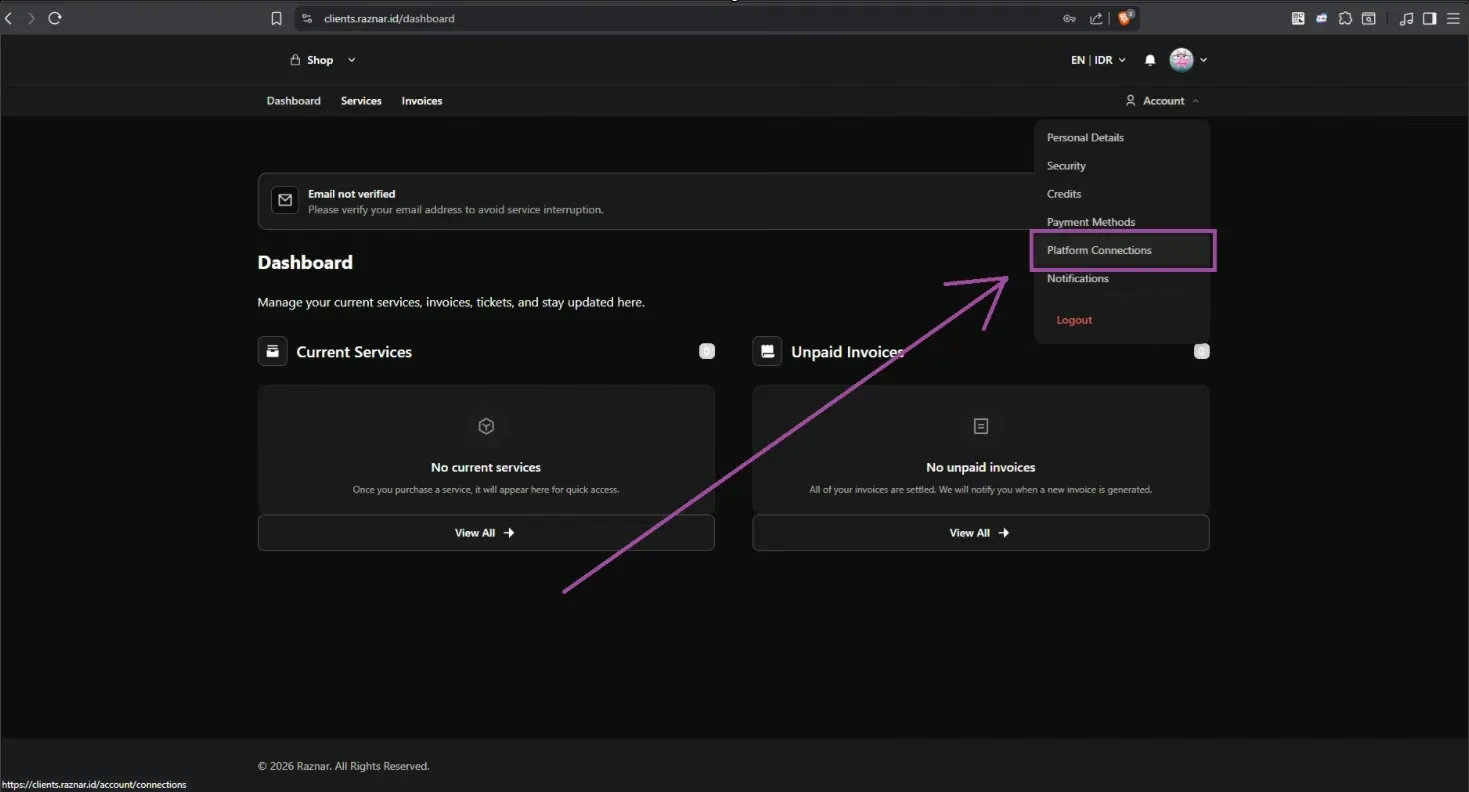
- Once you click it, a few menu options will appear. Just choose "Platform Connections".
Step 3: Click Connect Google
- On this Platform Connections page, you'll find the option to connect an account.
- Find the "Google Connection" section.
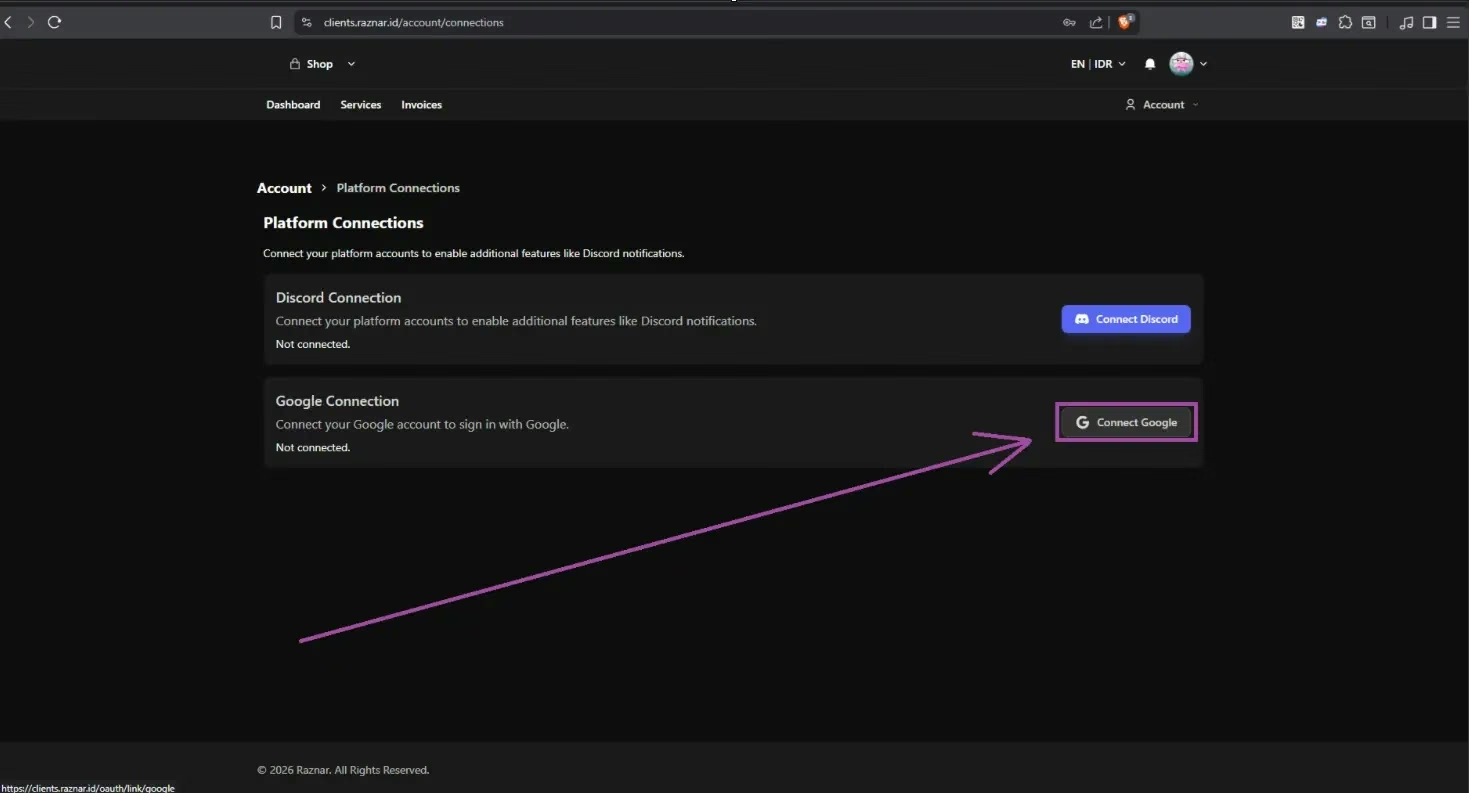
- Just click the gray button labeled "Connect Google" on its right.
Step 4: Choose Your Google Account
- After clicking, the system will automatically open Google's official login page.
- Just pick whichever Google email you want to link to your Raznar account.
- If a pop-up asks for access permission, click "Allow" or "Izinkan".
- Done! You'll be taken back to the billing website and the status will now have changed to connected (Connected).
ADDITIONAL INFO
You can also link your Discord account—on that Platform Connections page you can also connect your Discord account at the same time using the "Connect Discord" button.