Setting the Time & Time Zone on Windows
So the clock on your computer is always accurate, you can set the time and the time zone.
Here are the steps:
1. Open Settings
- Press
Win + Ito open the Settings menu.
2. Go to Time & Language
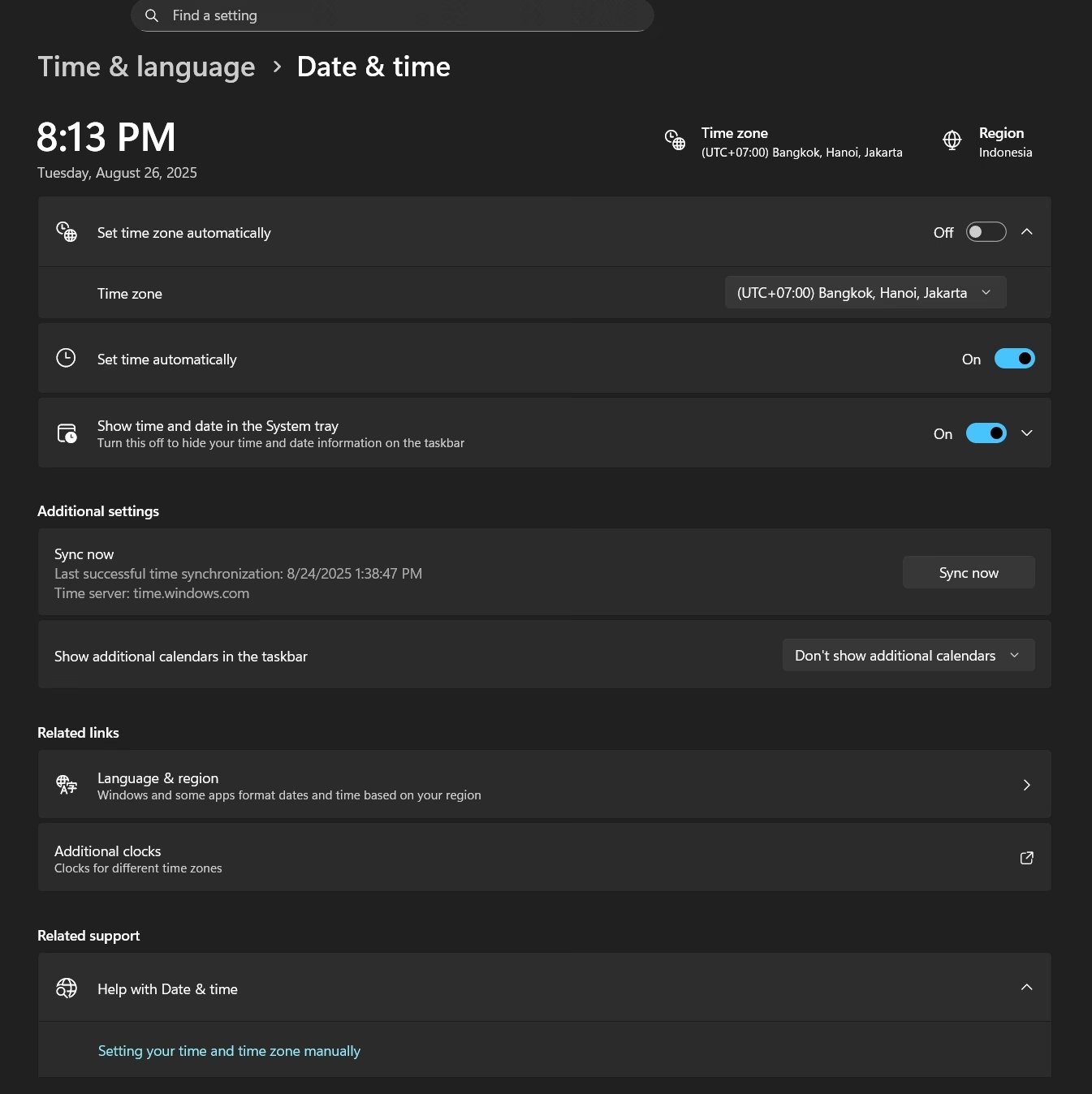
- Select Time & Language > Date & time.
3. Set the Time Automatically
- Enable Set time automatically so Windows follows the server automatically.
- If you want to set it manually, turn this option off, then click Change.
4. Choose the Time Zone
- In the Time zone section, select according to your location.
- Example:
(UTC+07:00) Bangkok, Hanoi, Jakarta.
5. Synchronize the Time
- Scroll down and click Sync now so the time syncs with the internet right away.
6. Configure Internet Time (Optional)
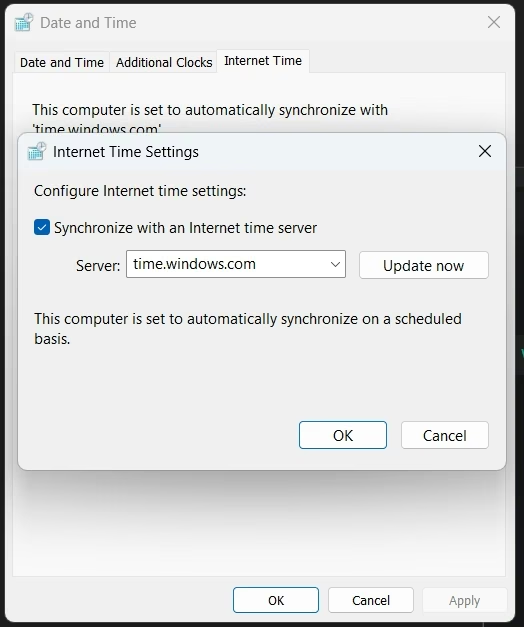
- Open Control Panel > Clock and Region > Date and Time.
- Select the Internet Time tab, then click Change settings.
- Check Synchronize with an Internet time server.
- Select a server (for example
time.windows.comortime.nist.gov), then click Update now. - Click OK to save.
This way, the time on your Windows machine will always be accurate and match the selected time zone.