Changing Your Password on Windows
If you feel your password is no longer secure or want to change it regularly, Windows provides an easy way to change it.
Here are the steps:
1. Open Settings
Press Win + I to open the Settings menu.
2. Go to Accounts
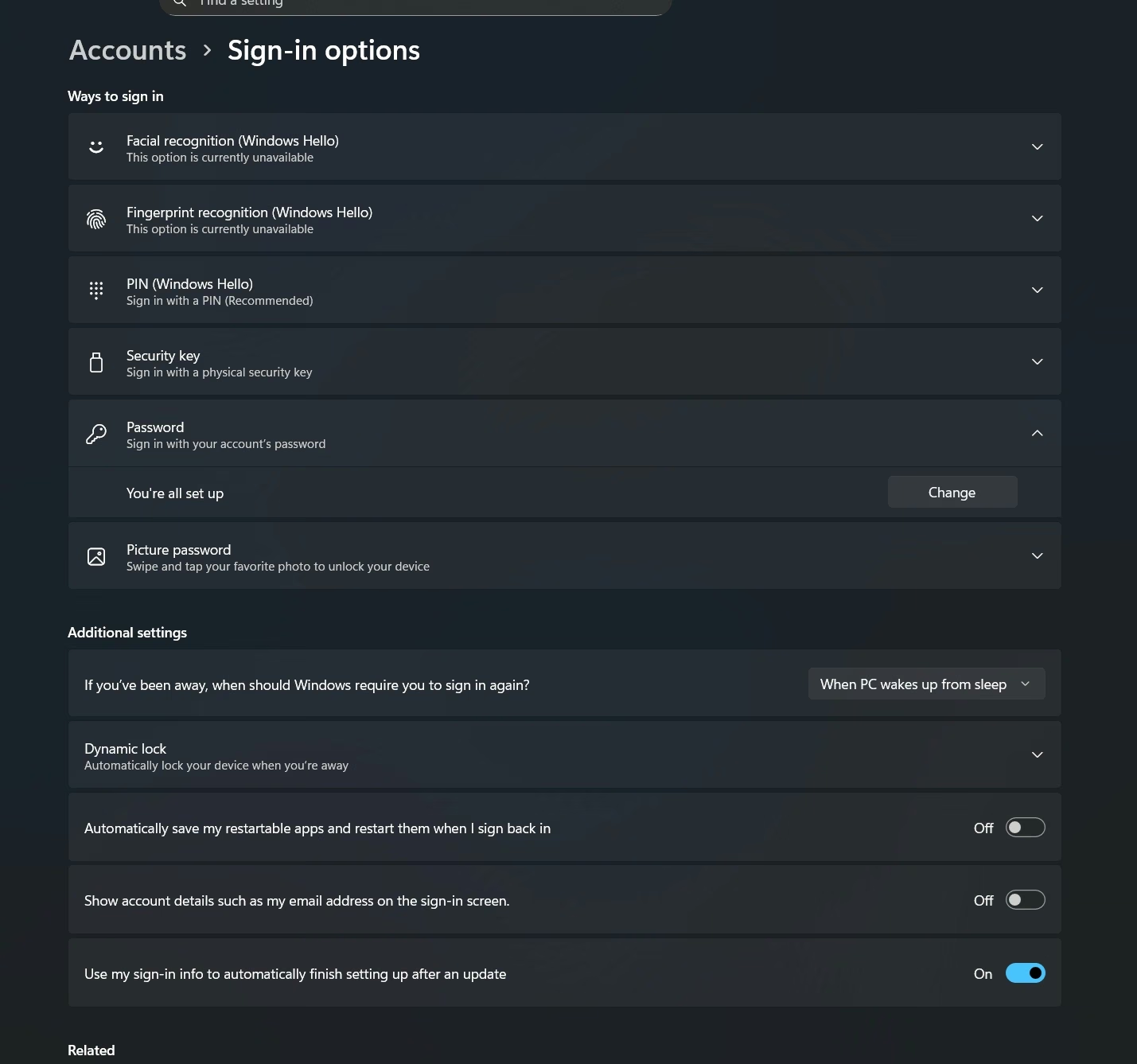
Select Accounts > Sign-in options.
3. Choose the Password Option
In the Ways to sign in section, select Password, then click Change.
4. Enter the Old Password
Windows will ask you to enter the password you're currently using.
5. Create a New Password
Type the new password, confirm it again in the available field, then click Next.
6. Done
Click Finish to save the changes.
From now on, you must log in using the new password.
💡 Security Tips:
- Use a combination of uppercase letters, lowercase letters, numbers, and symbols.
- Avoid using the same password for other accounts.
- Change your password regularly to keep it secure.